Create Project
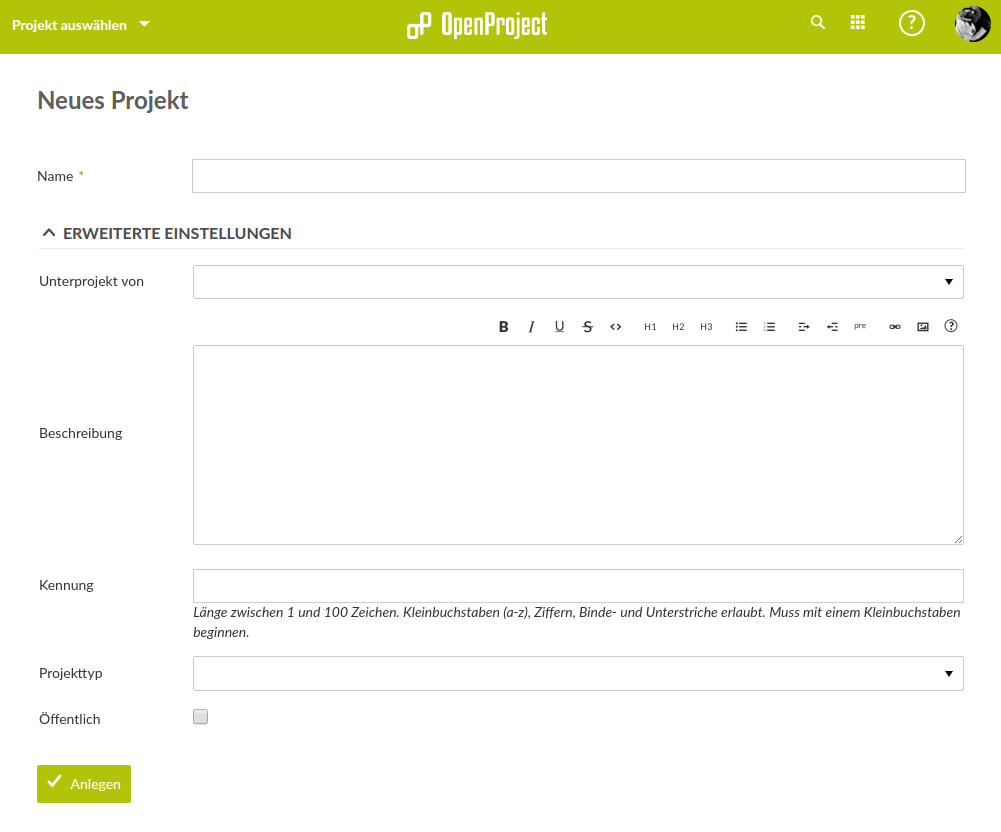
To create a project, the following parameters are expected:
- Project Name – the only mandatory field
- Responsible Person: optional. In projects with many participants, it is certainly useful to fill in this field.
- Dependency of another project (is it a subproject of XXX?): if yes, the project can be selected.
- Description: for several reasons, it makes sense to describe the project in a few sentences here. On the one hand, to solidify the common understanding of the project in broad strokes in writing, and on the other hand, for people who may be added later, so they can quickly get an overview – if they are not comprehensively briefed verbally.
- Project Type: project types must have been defined in the administration beforehand. This field can remain empty.
- Is the project publicly accessible? This makes the project information and all communication viewable and accessible to people who are not part of the project. These people have the role of “Non Member.” What they can ultimately see and change depends on the definition of this role – it can be individually configured.
Project Actions
Once a project is created, work packages are usually defined. However, work packages are not just tasks (“Task”) assigned to a participant. Work packages can be diverse:
- Phase (“Phase”)
- Milestone (“Milestone”)
- Evaluation
- Task
- Enhancement (“Enhancement”)
- Support
Work package types can be freely defined in OpenProject; new ones can be added, and pre-configured ones can be deleted. So, the list here is not necessarily what you will find yourself.
Phases and milestones are special work packages that do not actually represent tasks themselves, but could be described as containers to which work packages can be linked. A phase corresponds, for example, to a section of the overall project (e.g., “Demo”) and a milestone to an important part of the overall project (e.g., “Website for product completed”).
Most new work packages are created in the “New” status. The status can be marked as “In Progress” by the participants working on it, or possibly “Closed” or “Resolved.” However, it is also possible here, through individual settings, to define which participant is allowed to change the status of a work package – this can be defined in the workflows (“Workflows”).
Work packages can also have dependencies, which can be set accordingly.
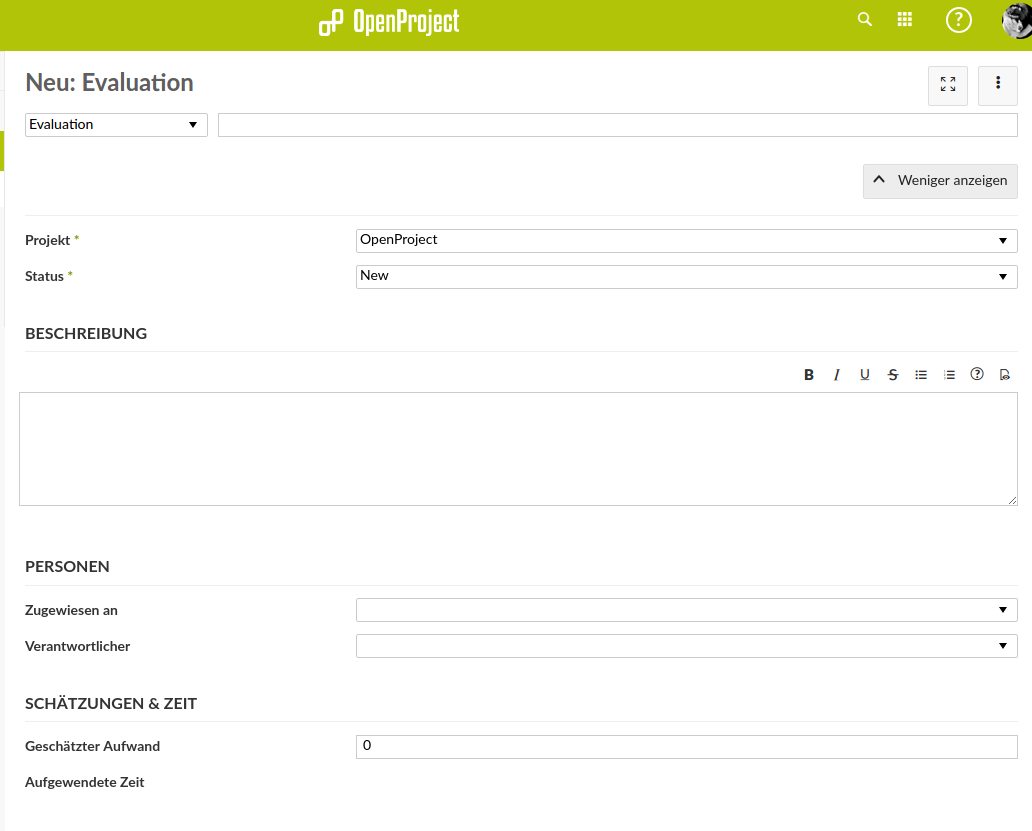
Typically, these fields are displayed; some are optional, others must be filled in:
- Project (pre-filled, but can be changed, which then switches to the other project)
- Status (default is New, but can be set directly to another status)
- Description (important)
- Assigned to (important: who should initially receive the package)
- Responsible Person (optional)
- Category (there are also work package categories for which, depending on the settings, a responsible person is automatically defined)
- Date (from – to)
- Progress (in %)
- Priority
- Version
- Documents can also be uploaded directly via Drag & Drop.