WordPress Requires Extensions
A Little Background
A few years ago, WordPress was still a simple blogging system, so complex layouts for pages and articles were not really significant. However, WordPress has since become the most widely used system for creating private and business websites, including online stores.
By default, WordPress therefore only offers one content field per page or article, which can be edited using the visual editor. As is well known, media such as images or videos can also be integrated into this field. In addition, shortcodes can be used to place other content, such as that created by other plugins, into the content area.
SiteOrigin Is THE Extension
Free but Valuable
SiteOrigin is a Page Builder plugin that (extremely) extends the functionality of WordPress in the area of content management. With the Page Builder, you can basically insert any content and create content structures independently of the theme, provided the theme does not already impose its own restrictions. It is important to know that SiteOrigin creates a structure that behaves responsively—as long as the widgets cooperate (the widgets from the bundle are all responsive).
There is a Premium extension for the SiteOrigin Page Builder, which allows additional widgets to be added to the existing selection. To be honest, however, you can get by very well without “Premium.”
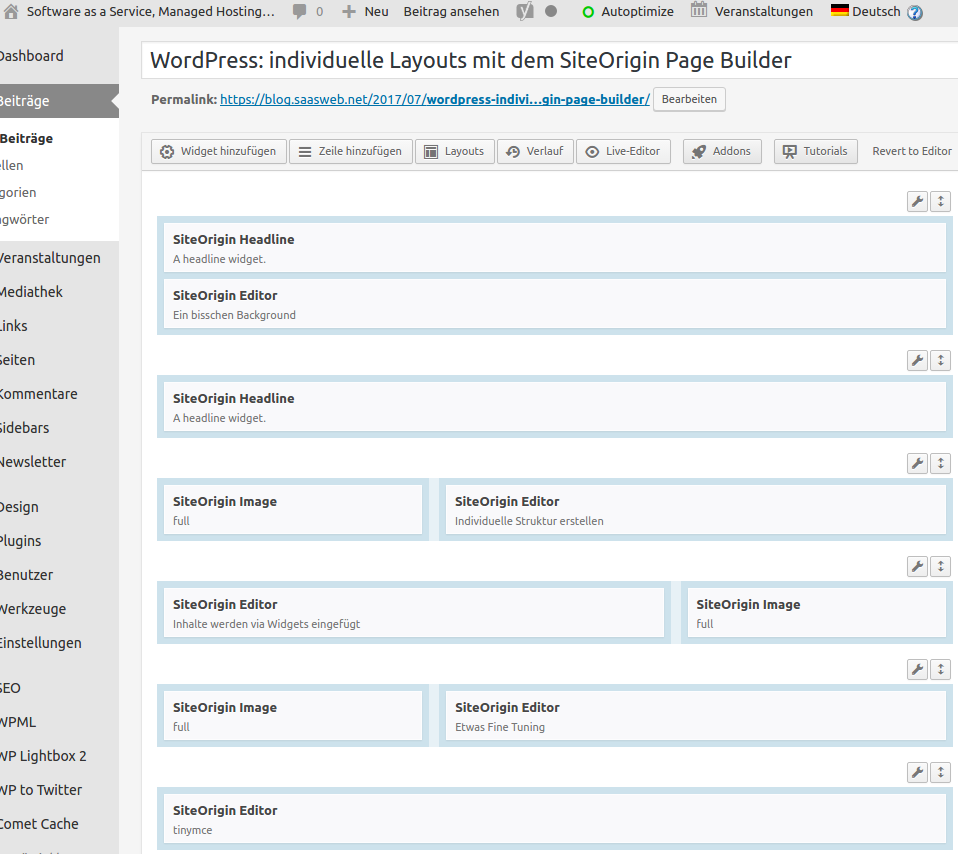
Create a Custom Structure
The possibility of nesting the Page Builder itself is also interesting: the Page Builder can be inserted as a widget, and a new structure can be created within it.
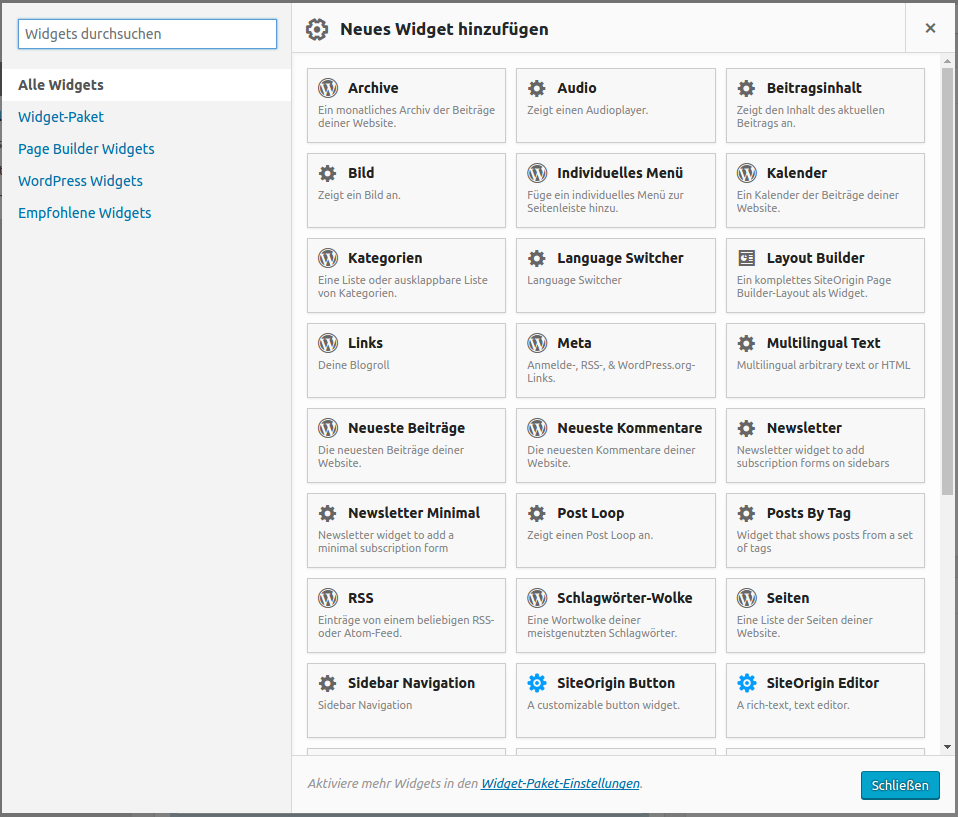
Content Is Inserted via Widgets
Display Content Across the Full Screen Width
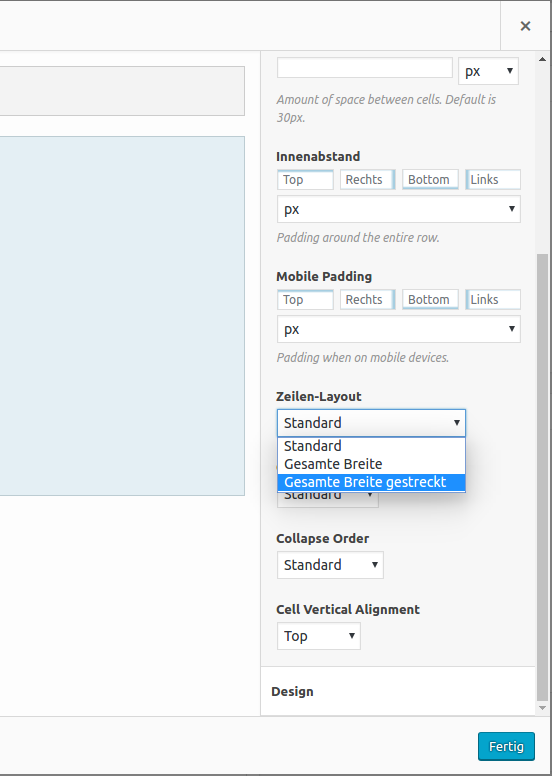
In the structure overview, individual settings can be set for each row—for example, a Row ID (CSS ID for the row) is practical if you are familiar with CSS—allowing you to define the page layout for your project with pixel-perfect precision. A special setting in the “Layout” section is the “Full Width” option. This allows the row to be stretched across the entire screen width. However, the content remains aligned with the others (usually the content area is a centered area in the browser window); if the “Full Width Stretched” option is selected, the content is also stretched across the entire screen width—this option is mostly used for sliders or header images.
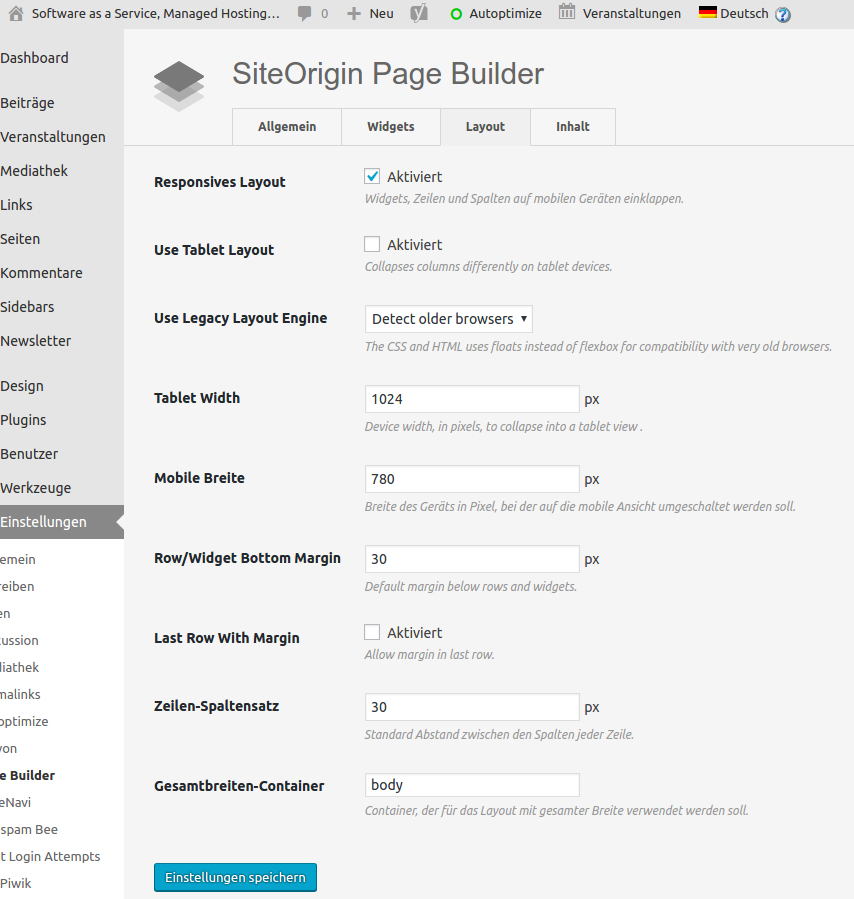
A Bit of Fine-Tuning
SiteOrigin Compared to Other Page Builders
- Divi Builder, Elegant Themes (paid).
- Elementor, Elementor (Freemium)
- Visual Composer, WP Bakery (paid)
These Page Builders are certainly among the most widespread, but there are others… Every Page Builder has its own UI and its own functions that one user or another particularly appreciates. In my opinion, however, the Page Builder from SiteOrigin has a decisive advantage: the content elements that you add to the content blocks you create yourself are widgets—perfectly normal widgets. This makes the flexibility particularly high and the extensibility virtually unlimited.