Mailto or Contact Form – Often That Is the Question
Should I offer a stylish contact form for my homepage’s contact page, or just an email address that the visitor can click to open their locally installed email program? To answer this question, put yourself in the visitor’s position: what do you prefer? What experiences have you had so far?
Mailto – Web 1.0
<a href="mailto:mail@domain.tld">Mailadresse</a> which instructs the browser to call the default email client and pre-fill the To: field with the specified address. It is even possible to predefine further fields, such as the subject line or even text for the content of the email.Example:
<a href="mailto:mail@domain.tld?subject=Dies%20ist%20der%20Betreff&body=Mailinhalt">Mailadresse mit vorausgefüllten Felder</a>. Because spaces and other special characters are not allowed in the href area, they must be replaced with HEX codes (%20).Everything you can do there sounds great, but there are also criticisms and problems:
- If no email program is installed on the device, nothing happens (the browser might open if you are a Gmail user, for example). At least the address can be written down to send a message at a later time.
- Malicious crawlers scan all pages of websites for email addresses and then use them to send spam (to the address, or as the sender). While this is true, often only the info@ email address is provided, and this address is used by spammers anyway since it exists in most cases.
- If you want to obtain specific information from people, for example for further contact, or to ensure that the person is a customer, you won’t get very far with a mailto link.
Contact Form 1.0
Contact forms haven’t just appeared yesterday. However, the average quality of forms has significantly improved, likely because more and more website operators are using a CMS (most use WordPress) and employing extensions that specialize in this one function and do it very well.
But back to the old forms: they were often not only buggy and lacked validation (you could sometimes even send them empty), which led to doubts about whether the messages reached anyone. Additionally, the sender rarely received a copy of their message, meaning important information for later communication might simply be missing.
Creating User-Friendly Contact Forms with Gravity Forms
There are numerous form plugins for WordPress, including free ones like Contact Form 7. Contact Form 7 is very popular (as of 2026: over 10 million active installations) and trustworthy.
However, we will create the example contact form with Gravity Forms, a particularly ergonomic form plugin, though it is a paid service (as of 2026: starting at 59 US dollars per year for one website). I should perhaps mention here that Gravity Forms is included free of charge in the Premium plan of SaaS Web’s Managed WordPress Hosting.
What Modern Forms Can Do…
.. …or what they should be able to do.
First, for the user side:
- Responsive layout; the form should be usable on all devices
- Clearly labeled fields, including whether they are required or optional
- Saving of already entered data during validation; if necessary, dynamic validation without the possibility of submitting the form before all required fields are correctly filled out
For accessibility, one might also wish that:
- Individual form fields should be accessible via tab in the correct order
- Fields should be described with important attributes that screen readers, for example, can evaluate
Now from the operator side:
- Easy creation of the form, e.g.
- Fields with ready-made functions to choose from (text, email, phone, multiple choice…) and corresponding validation
- Customize validation, e.g., mandatory field yes/no
- Conditional logic: show a specific field if another one is filled out/checked
- Assemble fields via drag & drop
- Send form data to the operator or other persons
- Inform the sender of successful transmission after submitting the data, possibly redirecting to a specific page
- Give the sender the option to receive a copy of the entered data
- Reference to the privacy policy directly on the form and a defined storage period for entries (GDPR)
Quite practical for designers and admins:
- Form fields can be extended with custom CSS classes
- Optional honeypot or captcha function (pay attention to data privacy with external captcha services like Google reCAPTCHA – a honeypot works without third-party providers)
Creating the Basic Form Structure
After installing Gravity Forms, you can create your first form – you only need to assign a name. Then you can define the fields.
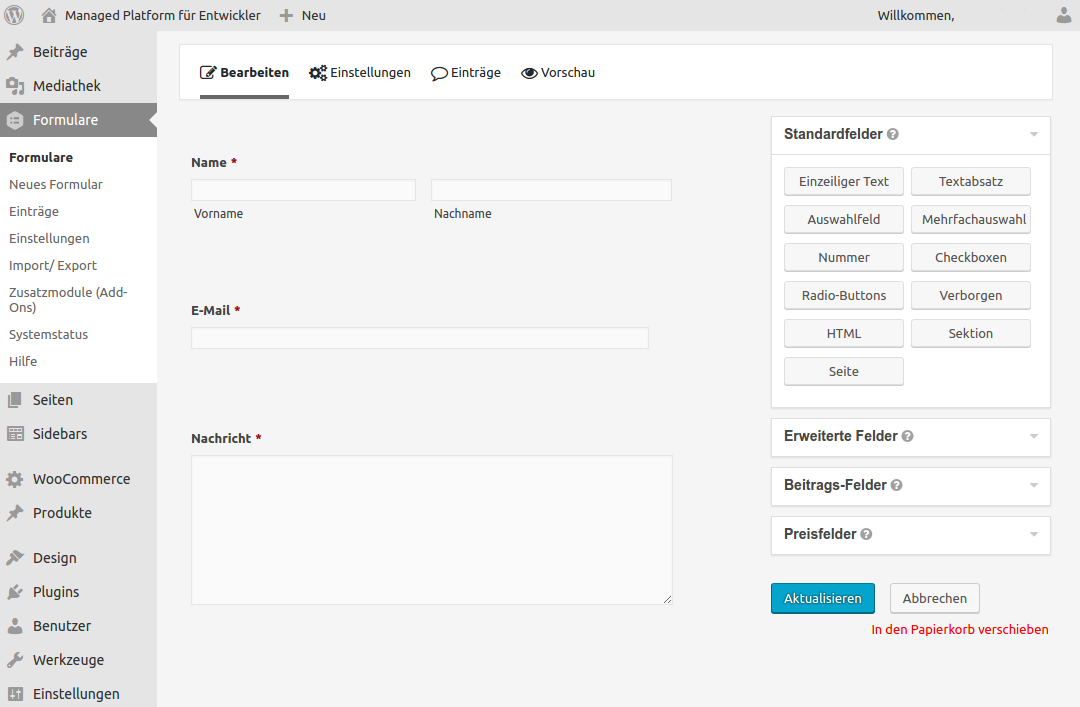
- Step 1: We create a checkbox that the user can check if they want to receive the copy via email
- Step 2: We create the notification including the logic that it is only sent if the field has been checked
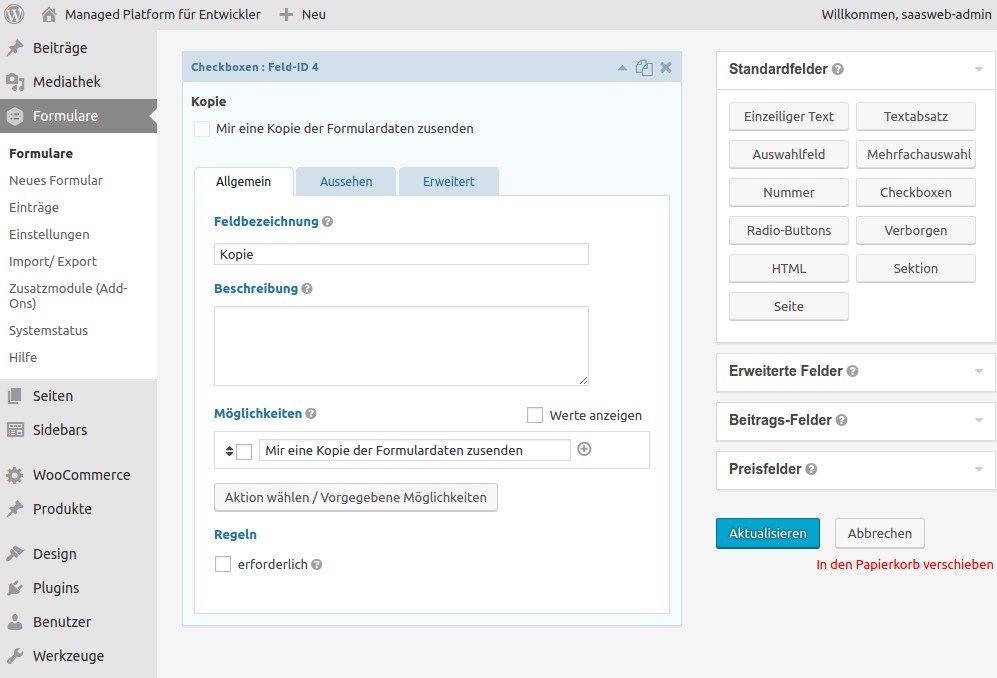
Integrating the Option to Receive a Copy of the Data as a Sender
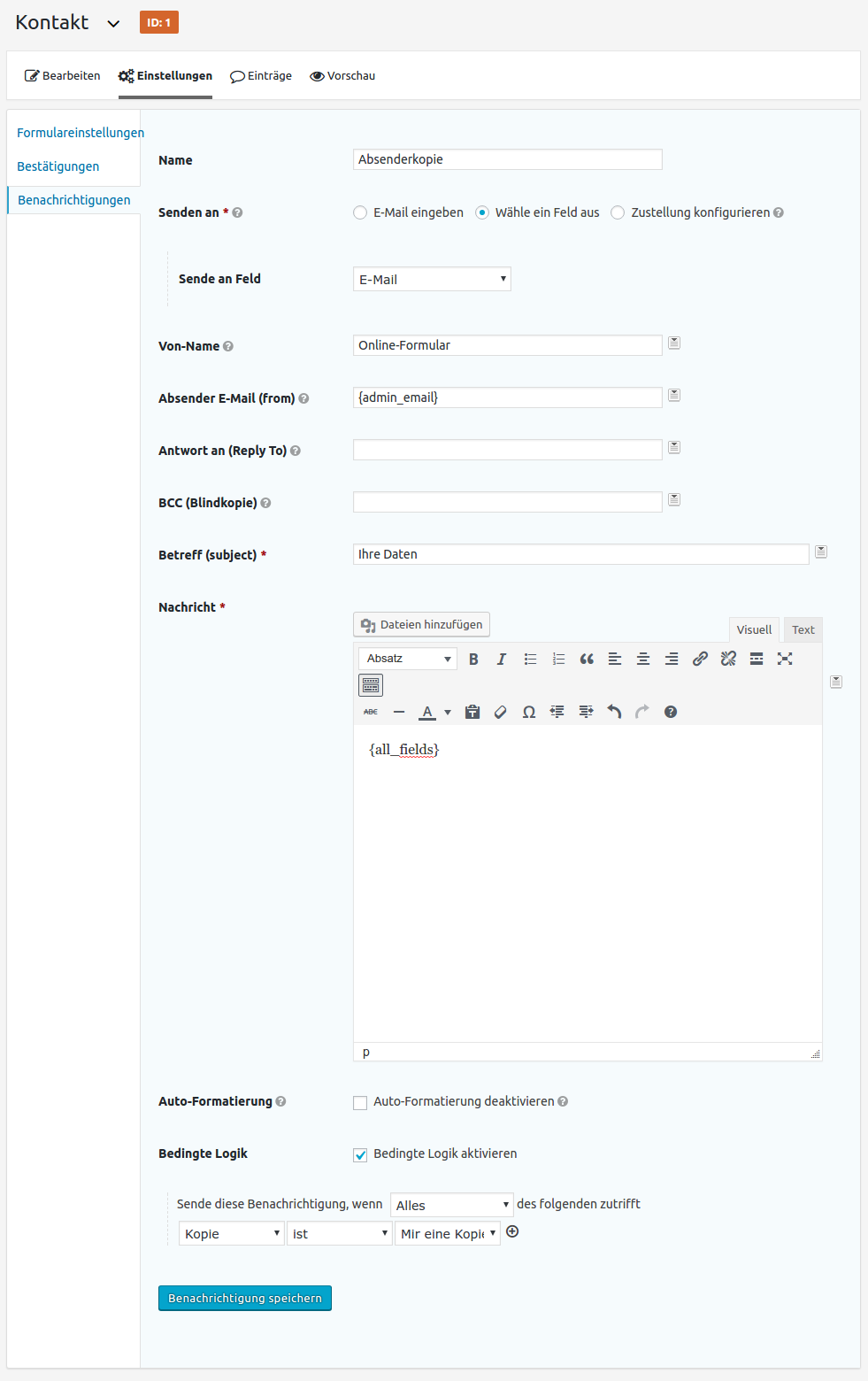
- Name: This is a required field, but actually unimportant
- Send to specified: “Select Field” > “Email” selected from the dropdown field; if you have named the email field differently, a different name will of course appear in the selection list. Please note that the email field must also be a required field, otherwise it will not work, of course…
- From Name: This is what the user of the form sees as the sender of the email
- Sender Email: Can be changed; I left it as preset. As of 2026: Be sure to use an address from your own domain here, otherwise the emails will quickly end up in spam due to SPF, DKIM, and DMARC.
- Subject: This is the subject line of the email
- Message: Here you have the option to insert the filled-out fields as a function. To do this, click on the icon to the right of the visual editor. You can, of course, also include a personal greeting or add other text.
- Conditional Logic: Check the box to activate the logic. Then, select the field that should serve as the condition and which state must be met
It’s That Easy with Gravity Forms
In principle, you could also skip the option to send the entered data to the sender and always send an email… but especially people who have had bad experiences in the past could be made aware that it will happen this way.
To conclude the discussion started at the very beginning: why not offer both? Display the email address and display a form… then a visitor can decide for themselves and will use what suits them best.
Do You Need Help with Your WordPress Site? We keep WordPress up to date and secure and help when things get stuck. More about WordPress Support