In a private setting, it is not uncommon to want to avoid sharing photos, videos, and texts with everyone.
However, you still want to be able to share content with friends and family, and it should be simple (plus, they shouldn’t be given permissions to modify the homepage)… Many people therefore prefer to use Facebook because they believe the content is private there—well, let’s leave comments on that aside…
Let’s turn to another option: we create a WordPress homepage that only registered users can access. To ensure that not everyone has to remember a login and password, we offer the option to log in via Facebook Login in addition to the standard registration.
Procedure
- Restricting Access
- Set up the Members plugin to adjust WordPress role definitions and redirect access to the homepage via the login page
- Install the User Role Editor plugin to create a custom capability (permission)
- Adjust the theme’s functions.php file to hide homepage content from subscribers
- Create a page with information for logged-in users who do not have the appropriate permissions
- Install/configure a Facebook plugin to allow Facebook users to log in without a username/password
- Create a Facebook app
- Set up a social login plugin (Nextend Social Login)
Restricting Access to the Homepage
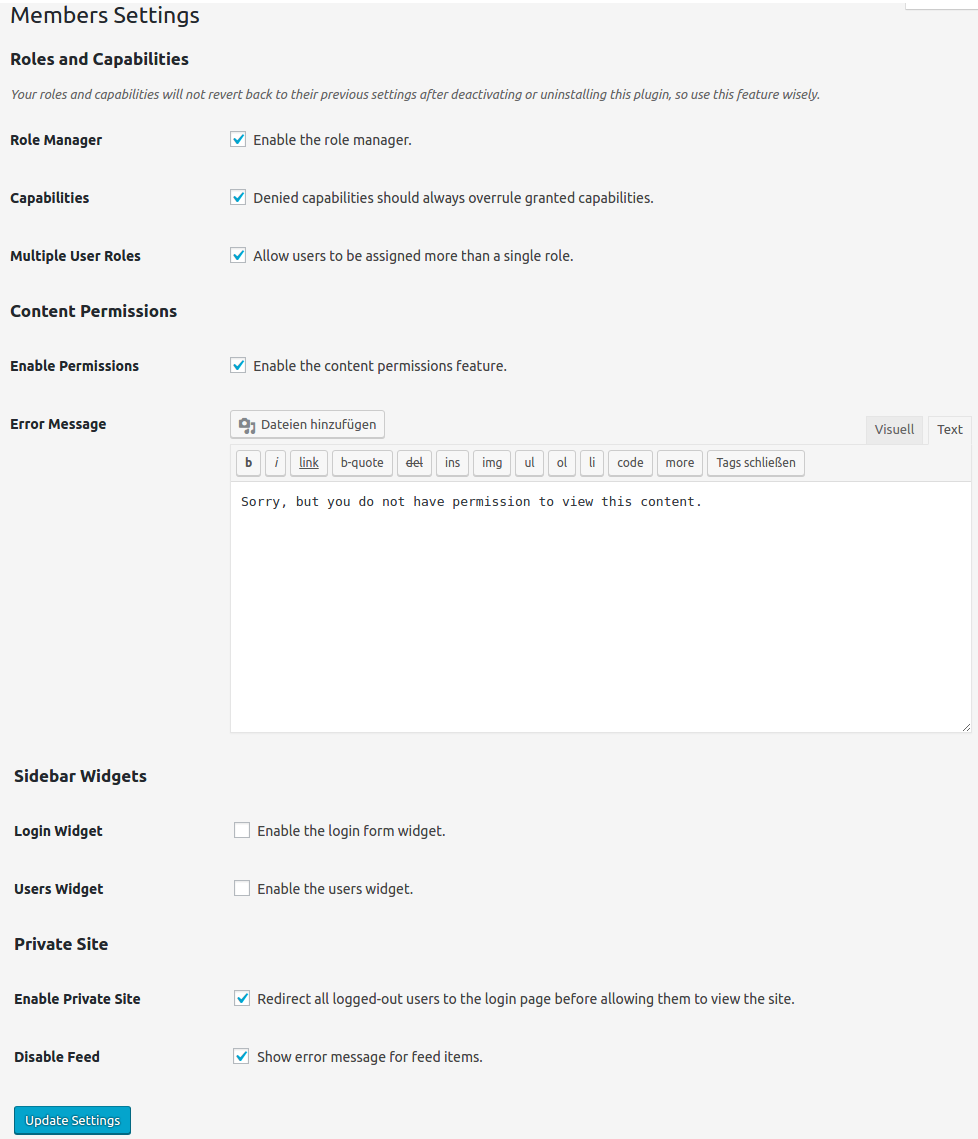
Setting Up the Members Plugin
- Preventing general access to content: visitors must be logged in
- Creating a new “Family & Friends” role: as an admin, we can manually move subscribers (who have no permissions) into the new role
We install the Members plugin and take care of its settings:
- Enable Private Site: check this—we want only logged-in users to be able to see the content, so non-logged-in users should be redirected to the login page, regardless of which page they try to access
- REST API: check this—otherwise, posts and pages can still be retrieved without logging in via the /wp-json/ interface
- Disable Feed: check this—other people or services should not receive information about the content
The other default parameters can remain as they are.
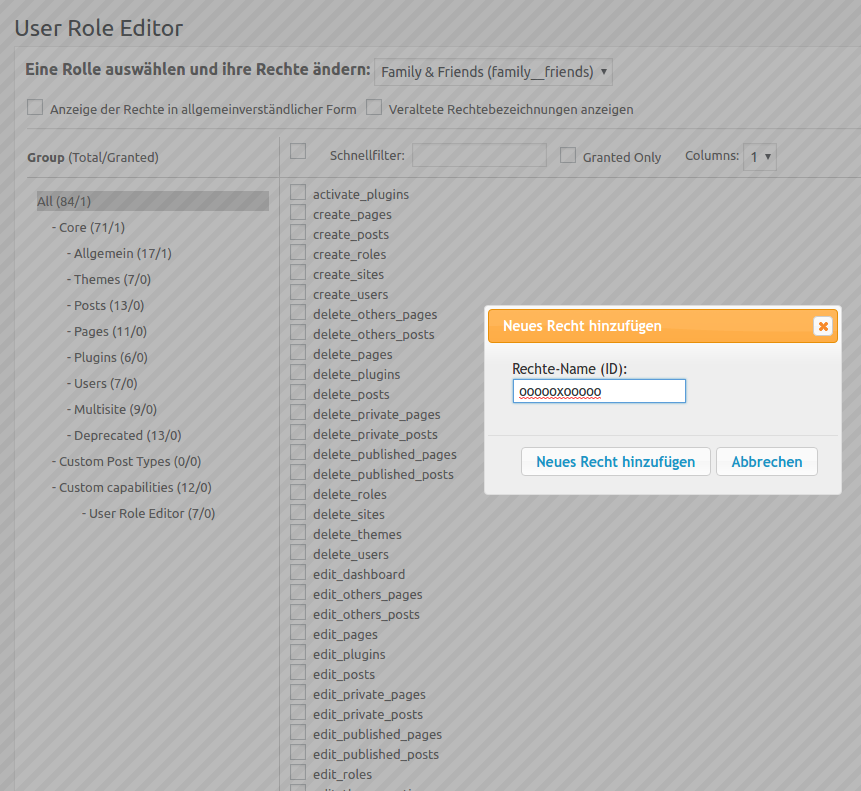
Creating a Custom Capability
So, we create a capability named oooooxooooo and assign it to the “Family & Friends” role, as well as the Admin role. If other roles are occupied on the WordPress installation (Editor, etc.), you can also assign the capability to those roles. In any case, DO NOT assign it to the “Subscriber” role!
Additional Setting in functions.php
Unfortunately, the Members plugin is not sufficient for our project, or rather, it is somewhat cumbersome. The Members plugin only enforces that visitors must log in. By default, however, a logged-in user has access to all content (pages/posts). But even if you set user permissions for all pages and posts, the unauthorized visitor will still see, for example, the post titles; only the content itself is blocked.
That is not what we want; we want to block access completely.
- Every theme has a
functions.php. This central file controls the behavior of a theme and connects various files together - The additional code checks three things:
- whether the visitor is logged in,
- whether the visitor does not have the “oooooxooooo” capability
- and whether the user is not already on the “Stop” page
If all three conditions are met, the visitor is redirected to the “Stop” page; otherwise, the visitor can view the pages/posts. The third condition is important because if someone accesses the “Stop” page, no further redirection must occur; otherwise, the request turns into an infinite loop.
Code for functions.php
function my_page_template_redirect(){
  if( is_user_logged_in() && ! current_user_can( 'oooooxooooo' ) && ! is_page( 'stop' ) ){
    wp_redirect( home_url( '/stop/' ) );
    exit();
  }
}
add_action( 'template_redirect', 'my_page_template_redirect' );
Code for functions.php in Multisite
function my_page_template_redirect(){
  if( is_user_logged_in() && ! current_user_can_for_site( get_current_blog_id(), 'oooooxooooo' ) && ! is_page( 'stop' ) ){
    wp_redirect( home_url( '/stop/' ) );
    exit();
  }
}
add_action( 'template_redirect', 'my_page_template_redirect' );
Page with Info for Rejected Users
Visitors who log in but do not have the required permissions should not simply see a blank page or some error message. It is much better to show these individuals a page stating that they do not have permission and should contact the homepage operator if necessary. An additional note for Facebook users who are using the Facebook login for the first time and therefore do not have permission is also useful.
Facebook Login
Regardless of which Facebook login plugin is used, we need a Facebook app that the plugin can connect to when a Facebook user wants to log in.
As of 2026: Meta now places significantly higher requirements on such apps (HTTPS, privacy and data deletion pages, and usually business verification and app review for users outside the app). For a private family homepage, Google Login, which the plugin mentioned below also provides for free, is often the easier path.
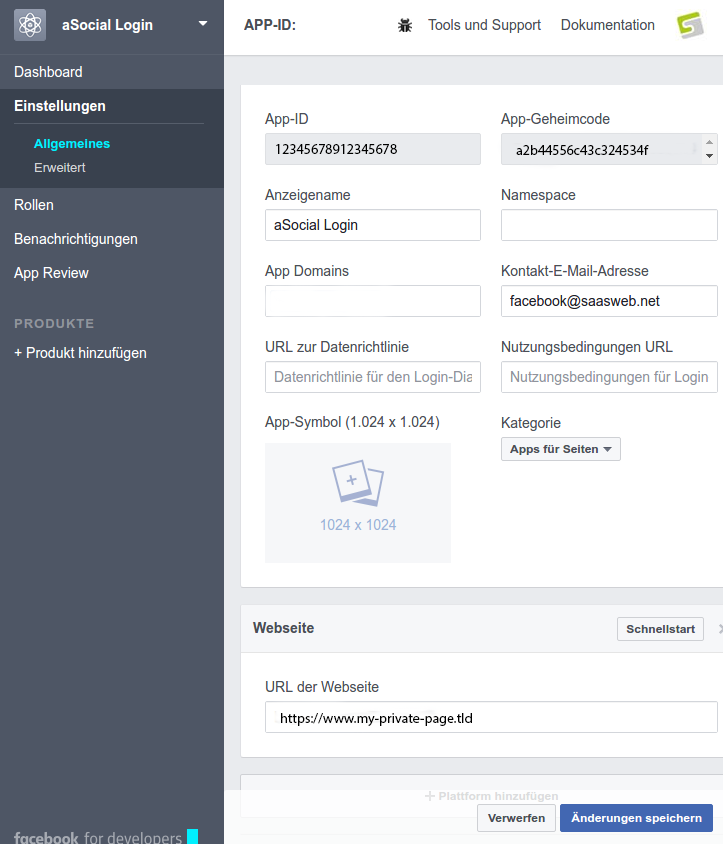
Creating a Facebook App
- Create a new app: App Name + Contact Email, select “Facebook Login” as the use case
- Customize Facebook Login: Add the “email” permission and enter the valid OAuth redirect URI displayed by the plugin (the website must be accessible via HTTPS)
- Settings > General: Enter App Domain, Privacy Policy URL, Terms of Service URL, and Data Deletion Instructions URL, Category, and App Icon; Add Platform -> Website -> Enter URL (save)
- To ensure that not only people with a role in the app can log in: go through business verification and app review, then switch the app from development mode to “Live”
- Copy the App ID and App Secret and paste them into WP
Setting Up Nextend Social Login
To make the plugin do what we want, we need to configure the following:
- Copy data from the Facebook app and enter it into the plugin
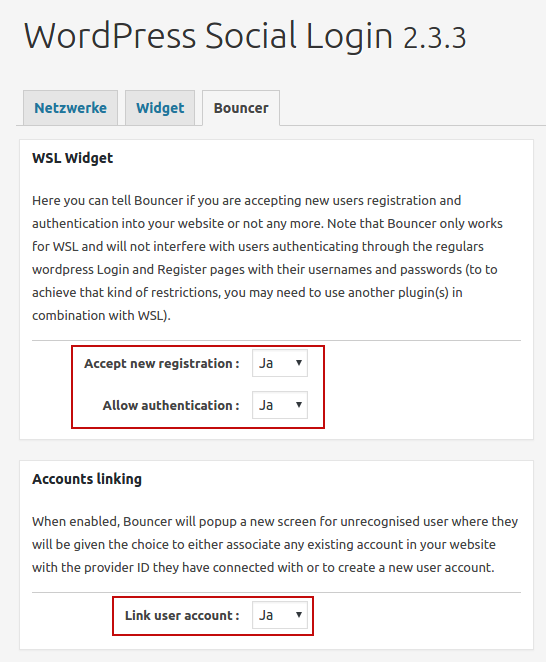
- Registrations and logins should be allowed (in Nextend: General > Membership > Enabled)
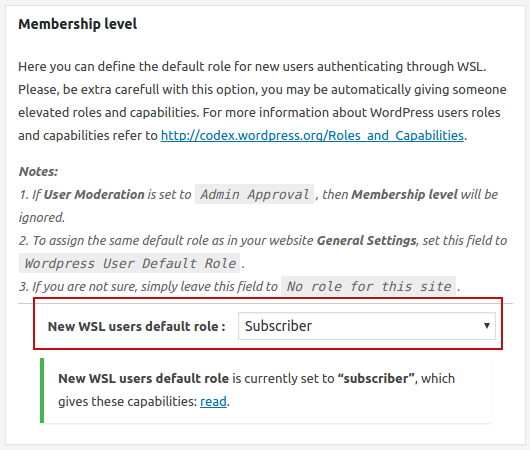
- Users connecting via networks initially receive the “Subscriber” role—this is the default role for new users, which we check again under Settings > General just to be safe: better safe than sorry!
When a new Facebook user registers, we also want to be informed so we can change the permissions (or not, if they are not desired individuals). Nextend sends the standard WordPress notification for new registrations by default, so the admin receives an email. In the Pro version, “Admin” alone can be selected under Registration notification sent to.
Insert Facebook App Data
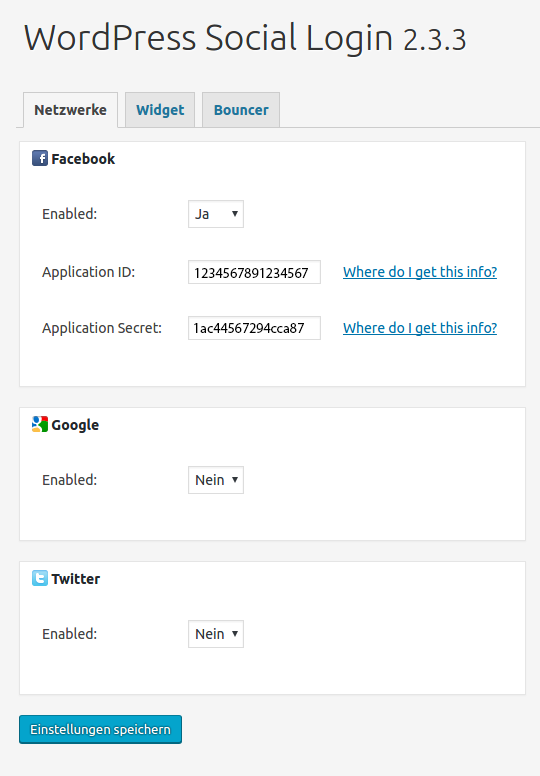
General Settings
Permissions for New Logins
Optional: Remove Admin Bar
If you want users from the “Family & Friends” group or those who are not admins (or do not have admin permissions) to not see the admin bar, you can hide it accordingly. To do this, code is again added to the functions.php:
function remove_admin_bar() {
if( ! current_user_can('manage_options') && ! is_admin() ){
show_admin_bar(false);
}
}
add_action('after_setup_theme', 'remove_admin_bar');
Note: this naturally means that these users cannot easily access their profile and therefore cannot edit their own data. However, we can add an entry to a suitable menu, e.g., “Edit Profile,” which links to https://my-website.tld/wp-admin/profile.php.
Summary
Logging in alone is not enough; the visitor must not belong to the Subscriber group (which is the default role when users are created) and must possess an additional oooooxooooo capability. Unauthorized visitors are redirected to the “Stop” page.
In addition to all this, we have set up a “Facebook Connector”: Facebook users can log in without entering a username and password. Newly registered Facebook users automatically belong to the Subscriber group and are initially not allowed to see anything. Note: if the visitor uses an ad blocker, the Facebook login may fail.
As the administrator, I am automatically informed of new registrations: if I know the Facebook user, I assign them the “Family & Friends” role.
Are you planning a new website? We develop WordPress websites that you can maintain yourself. More about WordPress websites