In the past, share buttons were found exclusively on blogs below individual posts; now, they are also visible on many corporate websites. Share buttons are intended to encourage visitors to inform their networks that they find a post interesting (Like) or even to recommend it—this posts the article (title, introduction, and image) to their own feed so that all “friends” or “followers” are informed.
How does this work, and what must a website operator do to provide this functionality?
How Sharing Works (in Most Cases)
Most share buttons currently in use become active as soon as a visitor accesses the page where they are placed—in doing so, they reveal that the page was loaded from a specific IP address, including the time, as well as data such as browser, device, and resolution. If the visitor happens to be logged into the network at the same time, the social network operator can identify the visitor at that moment and use the collected data for advertising purposes.
Visitors Are Tracked Without Their Knowledge
According to German data privacy laws, it is not permitted to pass a user’s data to third parties without informing them. However, this is exactly what happens so often. Information regarding the integration of social networks like Facebook or Twitter is usually stored on the Legal Notice page—but this page is rarely the entry point. Furthermore, users must be informed BEFORE data is passed to third parties…
Regardless of data privacy regulations or laws: it should be a matter of course not to secretly pass your guests’ data to third parties; you should fundamentally ensure that data remains private.
A little side story: a few years ago (2011), Google got into a dispute with a Hamburg data protection commissioner regarding the integration of Google Analytics into websites. Many websites use this “free” service from Google to analyze visitor activity. In the process, data about the visitor is sent to Google with every page view (IP address, device, browser, page accessed, etc.). The data protection commissioner threatened to issue warnings to all website operators who integrated Google Analytics on their homepages. It didn’t come to that; Google made some changes to its integration so that the transmitted data is anonymized. My comment on this: just use Piwik.
Sharing in a Privacy-Compliant Way with Shariff
For WordPress websites, there is a free extension called Shariff Wrapper to integrate various “Share with” buttons. Shariff supports the following networks, among others: Facebook, Twitter, Google+, Pinterest, LinkedIn, Xing—22 in total.
The plugin is particularly interesting because it not only manages buttons and placement through direct settings, but can also be positioned individually using shortcodes. And there is something for theme developers too: the function do_shortcode() provides the opportunity to create even more customized integrations.
Why Shariff Is Privacy Compliant
Unlike most “Share” integrations, no data is initially passed to third parties when the page is loaded. The functionality is only activated (via JavaScript) when the corresponding icon is clicked. It’s that simple!
Installation and Setup of Shariff
Step 1
It could hardly be easier:
- Install Shariff Wrapper and
- then activate the plugin.
To perform the configuration, click on Settings > Shariff in the left sidebar.
Step 2: Basic Settings
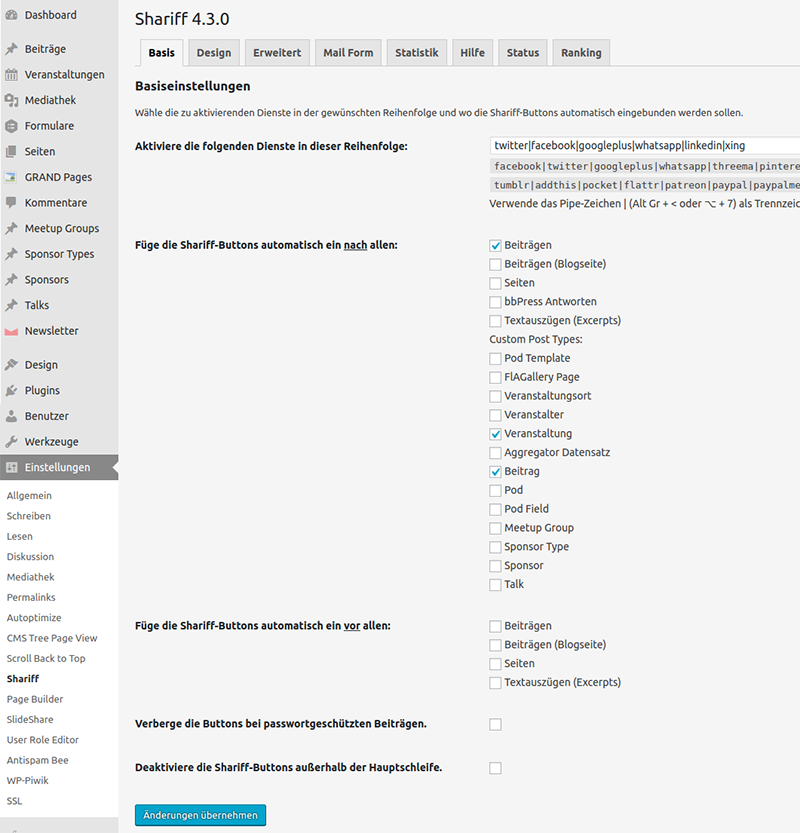
Here we specify which services should be displayed and in what order. The individual networks are separated by a pipe (|). The other options on this page deal with the pages/elements and the display position. All standard and custom post types are listed.
For example, after all posts: this causes the bar with the share buttons to be displayed on the single post page, below the text.
So, we check all the elements that are relevant to us. The screenshot lists post types that no one else has, so you should not try to have a 1:1 view as shown in the illustration.
Regarding hiding the buttons in password-protected posts or outside the main loop, you must decide for yourself. For your information: sharing a password-protected page will not work anyway or will not achieve anything unless the visitors have the password.
Step 3: Button Design
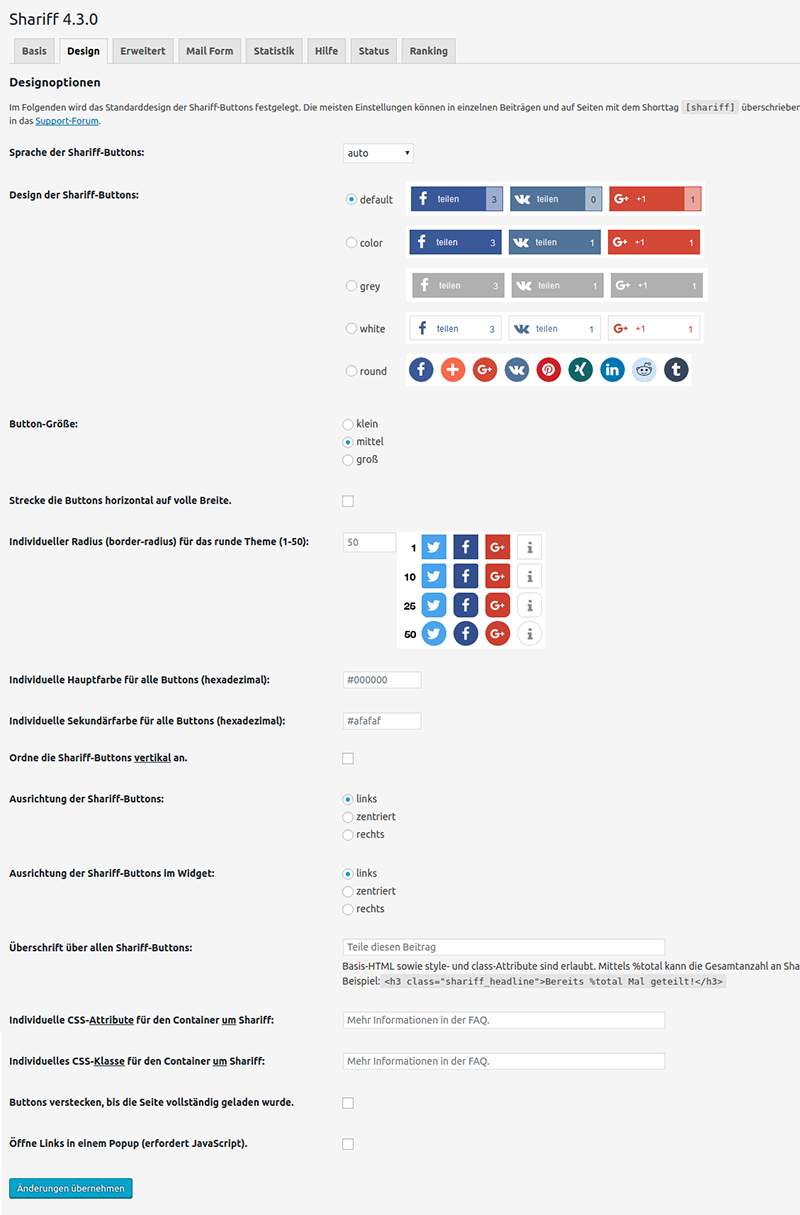
- Design of the Shariff buttons: there are 5 button types to choose from, with or without counters, square or round, colored, white, or in shades of gray.
- Button size: small, medium, or large.
- Stretch the buttons horizontally to full width: yes/no selection—a matter of taste.
- Arrange the Shariff buttons vertically: by default, the buttons are lined up next to each other; they can also be stacked on top of each other. Note: if the “stretch” option is used, it may no longer look as good…
- Alignment of the Shariff buttons (in the widget): left, right, or centered. Shariff distinguishes whether the buttons are displayed on a page/post or within a widget, hence both options.
These options are also quite nice:
- Headline above all Shariff buttons: a short introduction to explain the buttons or to strengthen them visually.
- Hide buttons until the page has fully loaded: this is quite useful to prevent elements from jumping around during page construction.
- Open links in a popup (requires JavaScript): personally, I wouldn’t use it, but it’s possible…
The language can also be selected here, although it doesn’t really have much to do with the design; perhaps the setting will move to the Basic Settings area at some point…
Steps 4 and 5: Statistics – Counting Shares
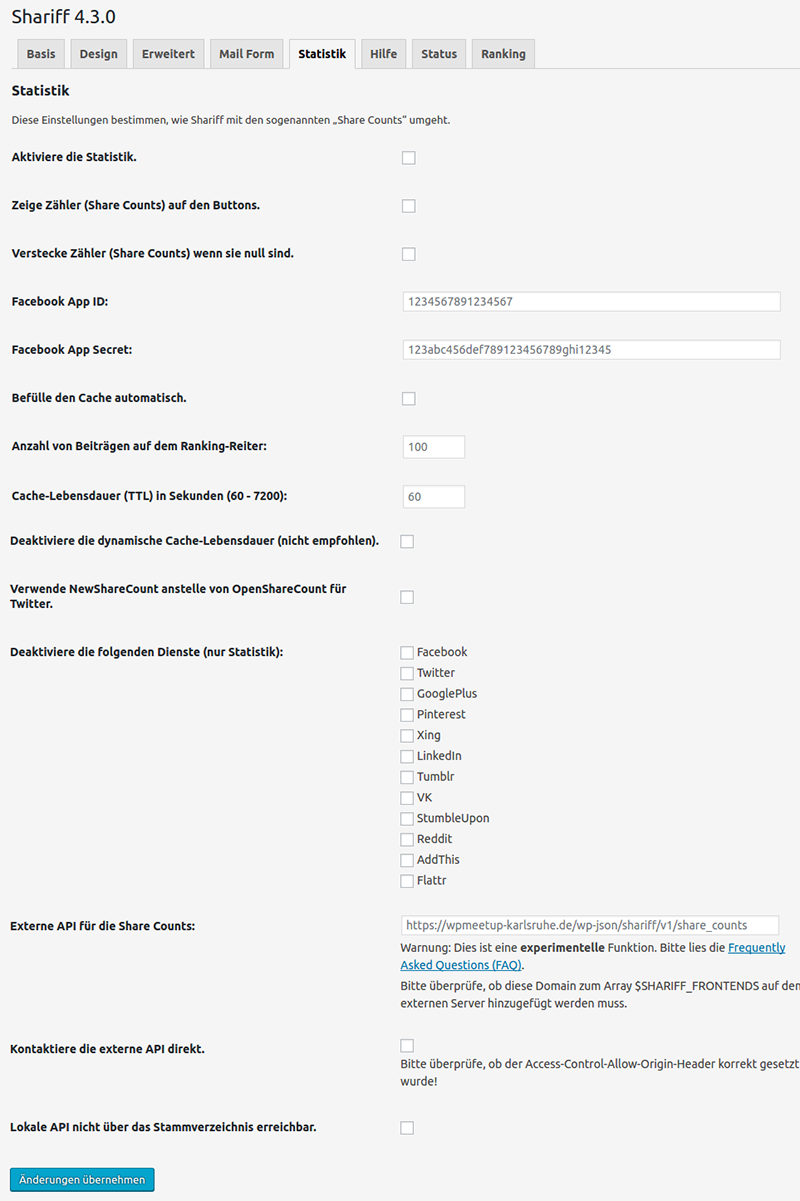
The Statistics section is interesting if you plan to communicate how often a post or page has been shared.
- Enable statistics: you must check this box to activate the counter at all.
- Show counters (share counts) on the buttons: as seen on the Design tab, the counts are displayed on the button.
- Hide counters (share counts) when they are zero: very practical for hiding the fact that the post has not encouraged anyone to share it.
Facebook settings: this is a bit more complex! A Facebook App must be created. You can then copy the ID and the Secret from there and insert them here.
- Facebook App ID: a combination of numbers.
- Facebook App Secret: a long combination of numbers and letters.
This is roughly how we create a Facebook App
Log in here: https://developers.facebook.com. Of course, you must have Facebook login credentials; otherwise, you must register.
- Create a new app
- Display name + contact email -> Create App ID
- Security check (Captcha)
- Settings: Select category, add platform -> Website -> Enter URL (without trailing slash) (save)
- Make App Review public and confirm
- Copy codes and paste into Shariff
Other Settings and Information
There are 3 additional tabs for Shariff: Help, Status, and Ranking. Help and Status are initially only interesting if something isn’t working or if you can’t get the setting exactly how you would like it. In the Ranking section, posts and pages are listed by the number of shares, provided the statistics option has been turned on.
Custom Use of Shariff with Shortcodes
It may be that you want to place the share buttons somewhere completely different from what the plugin offers. In this case, you can uncheck all the checkboxes in the Basic Settings section (so that the buttons are not displayed anywhere by default) and place them where you want using a shortcode. A shortcode provides the ability to place the result of a function within the text area of a post or page. With Shariff, for example, it looks like this:
[shariff theme="round" buttonsize="small" align="flex-end" services="facebook|twitter"]
The exact attributes can be found on the help page of the Shariff settings.