Example: Granting a SEPA Direct Debit Mandate Online
There are certainly many reasons to create a PDF document from a form filled out by a user, which they can download after submission. In this article, we will work together to create a page where a business customer can log in and grant us a mandate to collect future amounts via direct debit.
Please note: This fictional guide is not intended to be copied 1:1; it merely serves as inspiration for your own processes. Clarify in advance with your bank whether and in what form they accept mandates granted online – especially in the case of SEPA Business-to-Business Direct Debits.
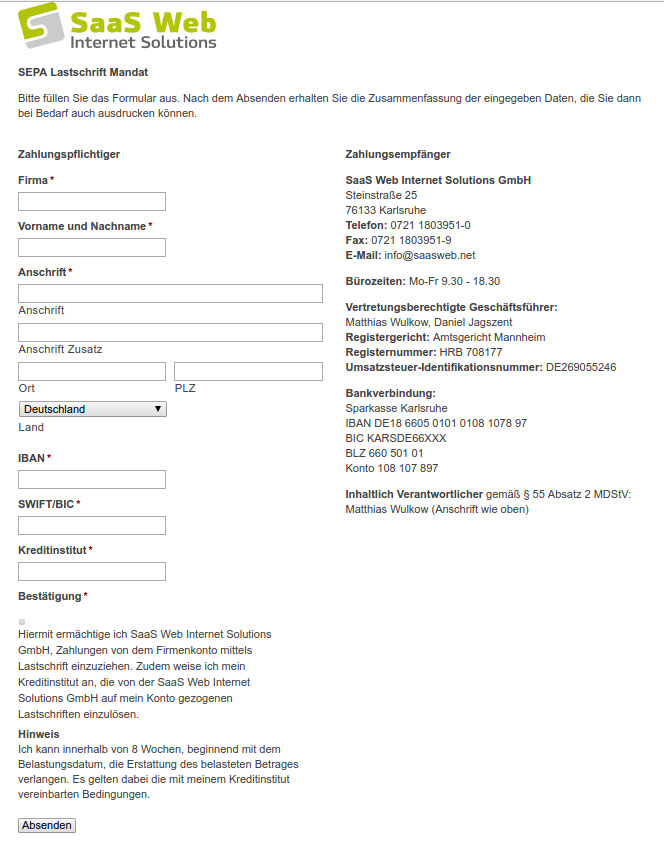
The Various Components: What Do We Need to Do?
For this small project, we will implement the following:
- Create a mini WordPress website (1 page) with information on SEPA and a form
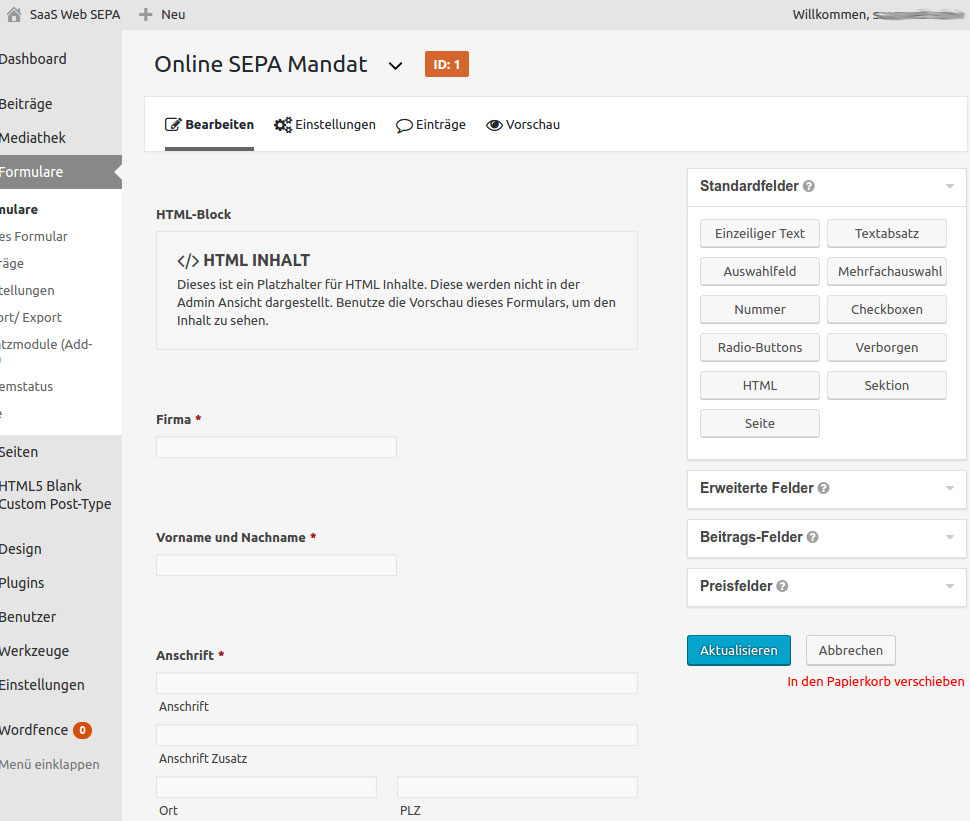
- Create a form with Gravity Forms
- Configure form and PDF settings
We use Gravity Forms because it is a truly easy-to-use plugin. Although it is a paid service (as of 2026: starting at 59 US dollars per year for one website, there is no free version), it is included free of charge for SaaS Web customers on the Premium Managed WordPress Hosting plan. With Gravity Forms, forms – even complex ones – can be created via drag & drop. I should also mention that there are free form plugins available, such as Contact Form 7.
Setting Up the WordPress Site and Using a Simple Theme
I assume that setting up a WordPress website is not a problem – otherwise, you are welcome to ask your trusted agency 😉
This is not about seamless integration into an existing website or adopting the corporate identity. Further steps are necessary for that, depending on the technology already in use…
The homepage is set as a static page (Settings > Reading > Your homepage displays: A static page – we leave the Posts page empty) and edited. Let’s set the password protection right away: in the sidebar on the right under “Status” (in older WordPress versions “Visibility”), select the Password Protected option and set a password. Update/publish immediately so that this setting is established.
Data privacy status as of 2026: Since bank details are collected here, the site naturally runs only via HTTPS, and a reference to your privacy policy belongs on the form. Additionally, specify how long the entries remain stored (Gravity Forms: Form Settings, “Personal Data” section). WordPress password protection is only a basic form of access control.
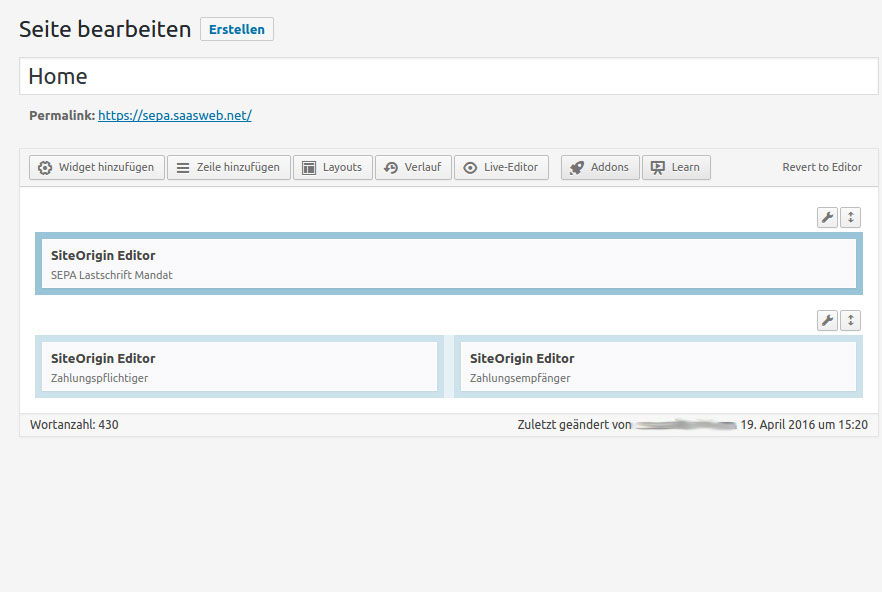
Reaching the Goal Faster with SiteOrigin Page Builder
For our project, I am creating 2 rows: the first to display a simple introduction for the customer, and the other with the actual content. The second row is divided into 2 columns, the left one with the form and the right one with our company information.
To display the form in the left column, I have 2 options: I can either use the Gravity Forms widget or write the shortcode into an Editor widget. I have chosen the second option. Either way, we now need to create a form.
Creating a Form with Gravity Forms in 5 Minutes
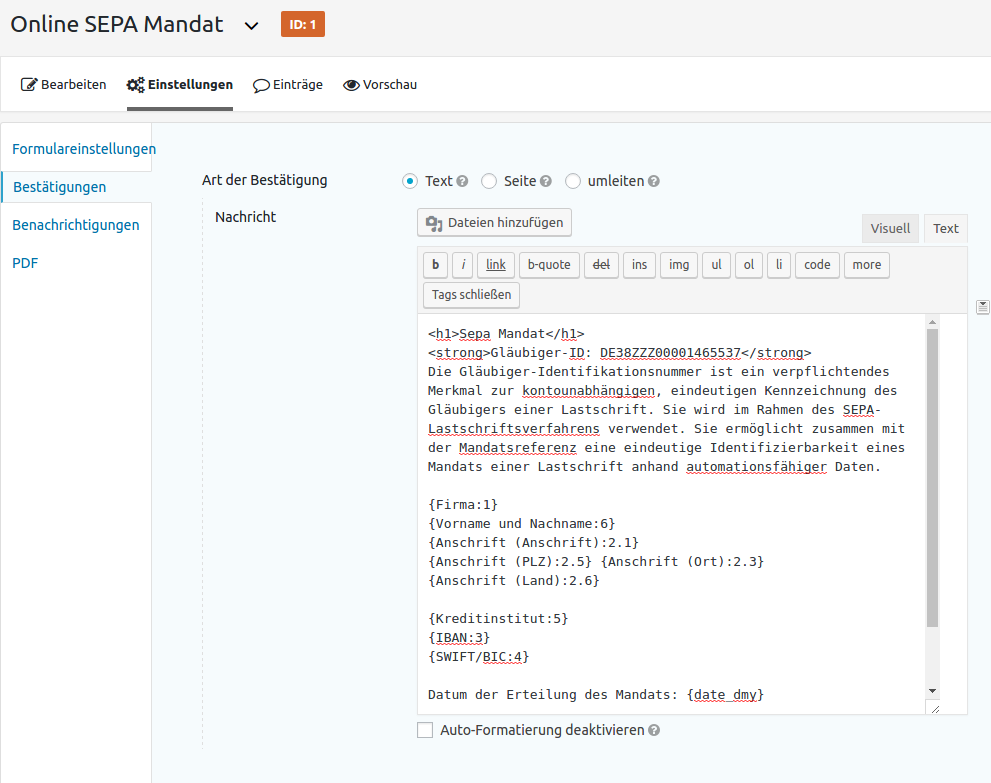
PDF Download with Gravity PDF
[gravitypdf id="DEINE-PDF-ID" text="DOWNLOAD PDF" class="pdf-download-button"]You can find the PDF ID and the finished shortcode in the PDF settings of the created form (Form > Settings > PDF). As of 2026: The link in the format ?gf_pdf=1&fid=… previously shown here originates from Gravity PDF 3 and will be discontinued with Gravity PDF 7.
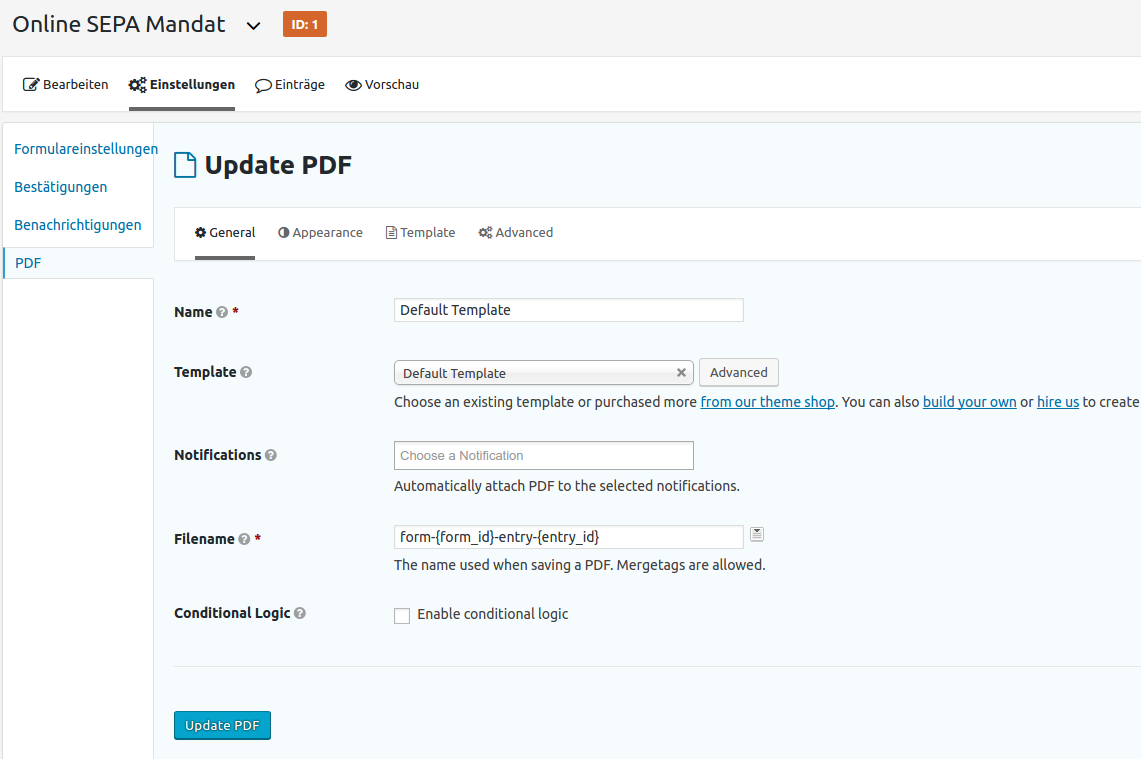
Numerous Configuration Options with Gravity PDF
In this example, we took the quick route: no special settings, no complications. The PDF plugin offers numerous options for formatting and styling the PDF, etc. For that, you should read the Gravity PDF documentation yourself. The plugin itself is free; additional PDF templates and extensions are available for a fee.
Use Gravity Forms Free of Charge with the SaaS Web Premium Plan
As already mentioned in the article, Gravity Forms is included free of charge in the Premium plan of our Managed WordPress Hosting. There, you can also use other licensed plugins free of charge, such as: WPML (multilingual plugin), SearchWP (enhanced search function for WordPress), or Newsletter Pro (including WooCommerce integration for newsletters). You can find our Managed WordPress Hosting offers here.
Are You Missing a Function in WordPress? We develop custom plugins, blocks, and interfaces. More about WordPress Development