If you operate a commercial website—whether it is a popular blog, a shop, or a corporate presence on the web—you may want to send information to your readers or customers more or less regularly via email, in the form of so-called newsletters.
The Newsletter Plugin by Stefano Lissa & The Newsletter Team
We will focus on the Newsletter plugin, which we know well and have set up in numerous WordPress installations.
The most important features listed briefly
- Subscription form as a widget or shortcode
- Double opt-in procedure (standard in Germany, so you can prove consent according to GDPR)
- Subscriber profile management and unsubscribe link
- Drag & Drop template tool
- Easy management of subscriber lists
- Premium version: WooCommerce integration, advanced statistics, automation, connection to delivery services
The 4-step installation wizard
The installation wizard guides the user through the initial setup of the plugin (steps and screenshots show the status from 2017; it looks different in current versions). This initial setup is very minimalist. The configuration of the delivery technology (SMTP) or subscriber lists can be performed later.
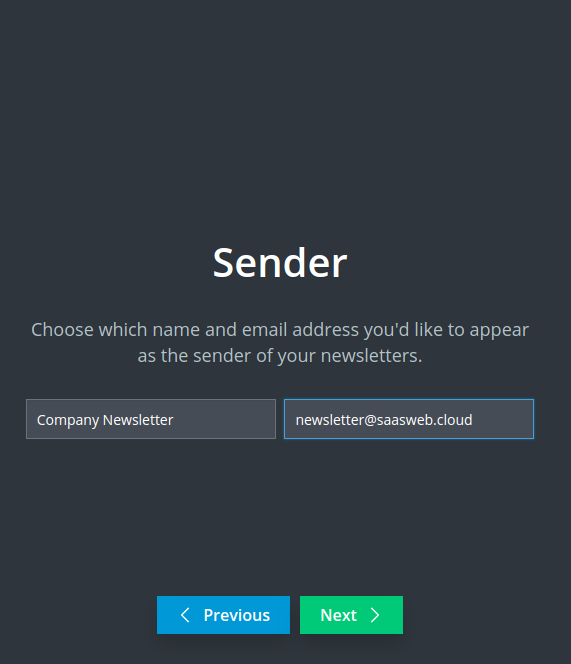
Step 1: Configure Sender
In this step, you define the sender address and the name that the recipient sees.
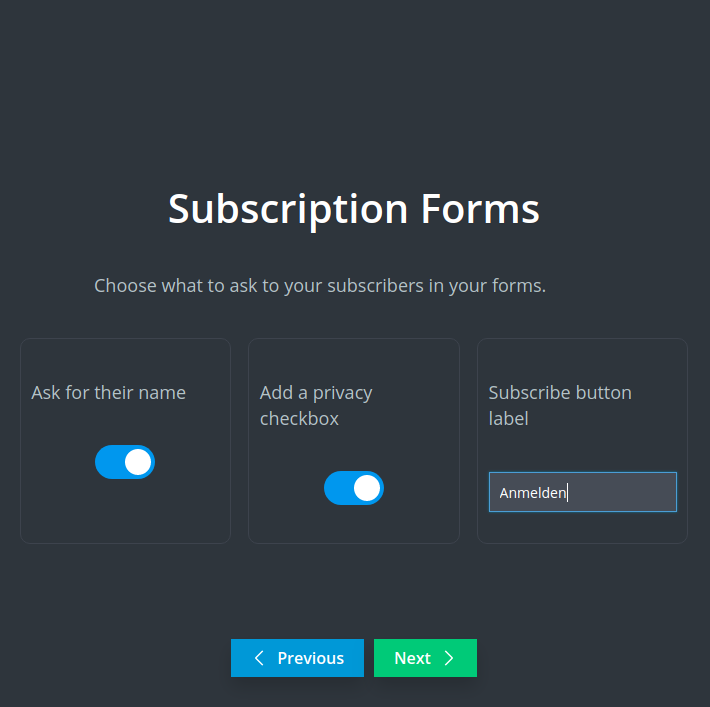
Step 2: Subscription Form
Here you can configure a “minimal form” that can be placed as a widget on the website.
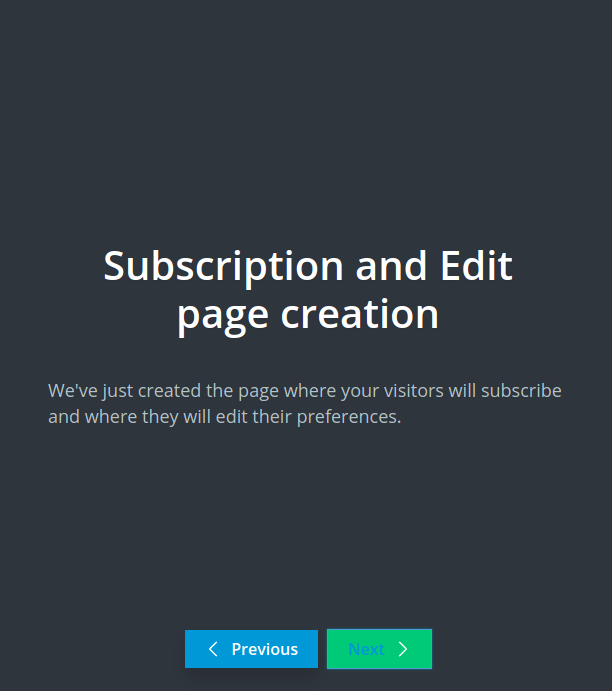
Intermediate Info
This screen merely provides information about the installation status. This page is likely one of those that will soon disappear from the wizard 😉
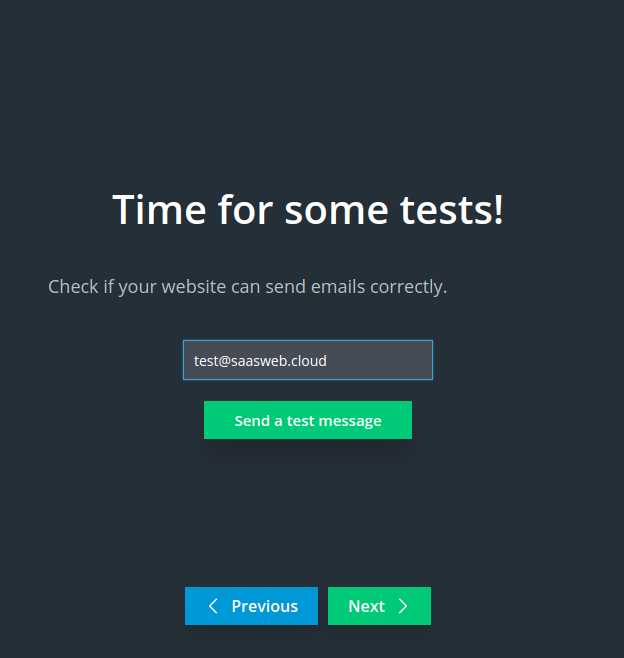
Step 3: Test Delivery
Simply enter an email address—preferably one you have access to.
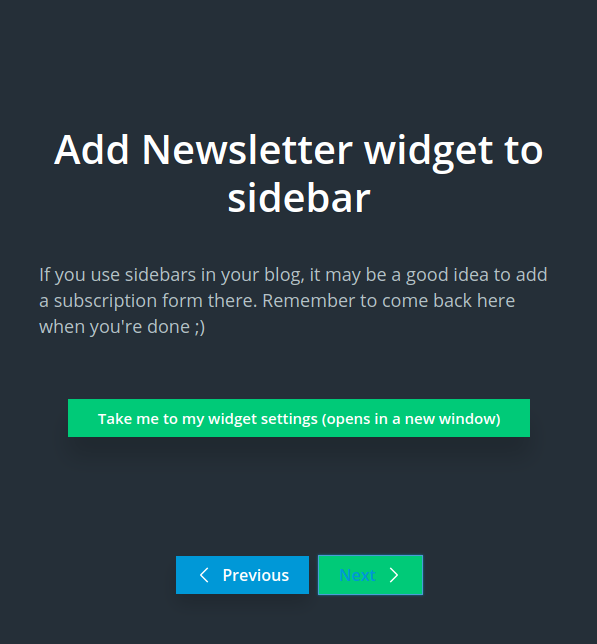
Step 4: Place Widget with Subscription Form
The form was created in Step 2; now you can place the widget via the menu item “Appearance > Widgets.” In block themes, this menu item no longer exists—there you insert the form, for example, with the shortcode [newsletter_form] in the Site Editor. You can also skip this step if you want to perform the integration later or embed the form in another way.
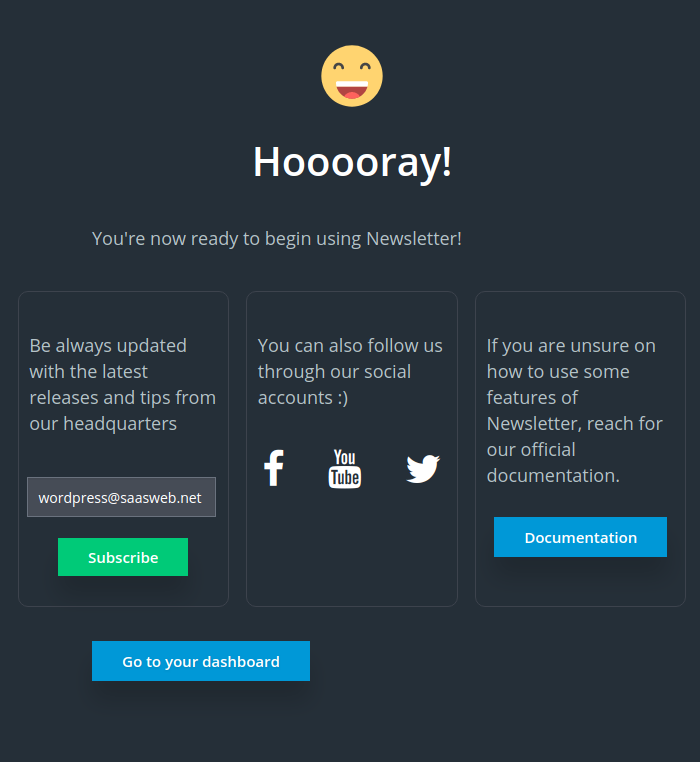
Initial Installation: End
So, that’s it. It is best to now click on Dashboard and go through the functions and options of the plugin.
The Dashboard
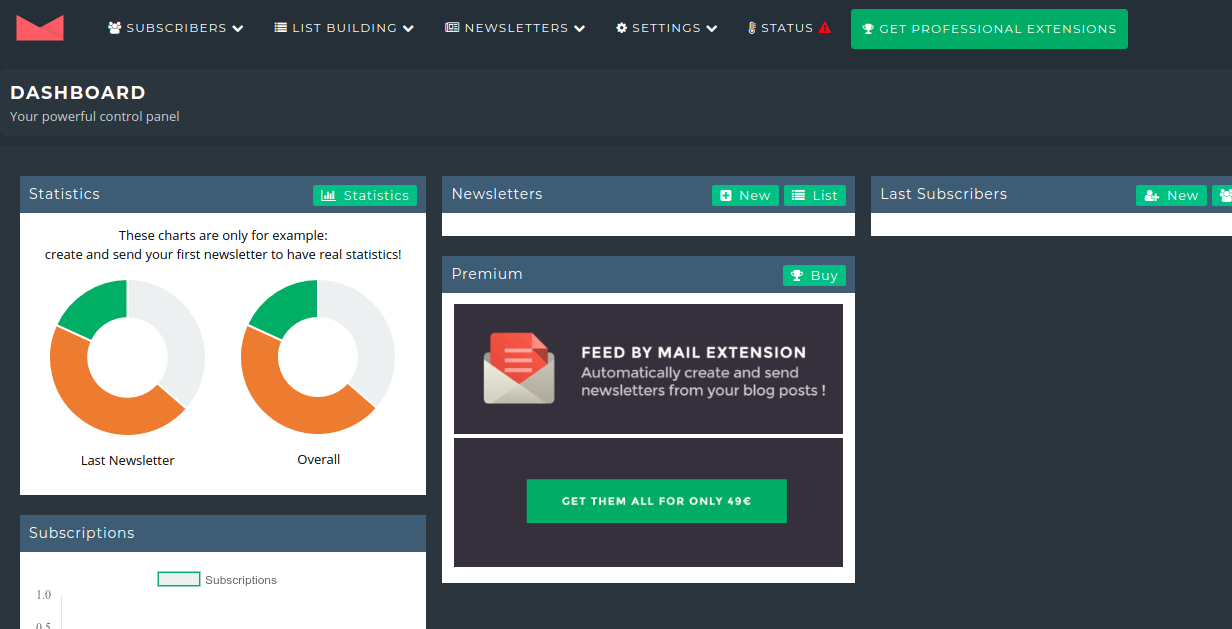
The Dashboard is the central information hub of the plugin. Here you can see all current and past activities and statistics regarding clicks at a glance.
Basic Configuration
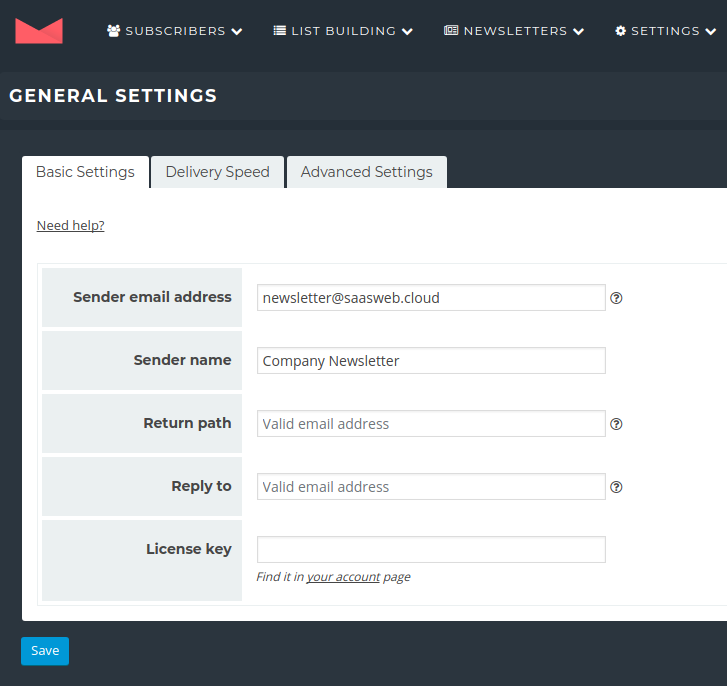
Sender, Reply-To, and Bounce Address
We specified the sender address in the wizard. This email address is what the recipient sees in their email client. In addition, two other addresses can be configured:
- The Return Path: this is the bounce address. If the recipient’s mail system cannot process the address, the mail system sends a corresponding notification to the address specified here.
- The Reply-To address: this is simply the email address that is automatically used when a recipient clicks reply.
We will address the topic of license keys later.
Important: if you use a mail gateway service, these two addresses (Return Path and Reply To) may be overwritten. You can specify the addresses either directly in the integration plugin or in the customer interface of the mail gateway provider. More on this topic can be found in the Advanced Settings section.
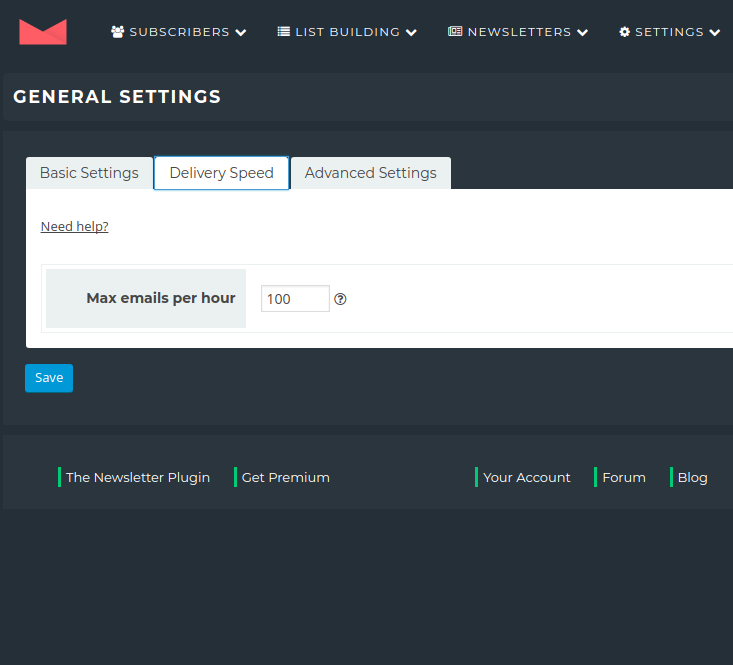
Delivery Speed
Even if it is annoying to take 3 or 4 hours for 1,000 recipients: without significantly greater effort (or budget), it is not possible or sensible to deliver more than 300–400 emails per hour. Receiving systems are usually configured so that after a certain number of emails per hour, they automatically flag all further incoming emails from the delivering mail system as spam and may even bounce them (send them back to the bounce address).
This applies to delivery via your own web server or a standard mailbox. With a delivery service (mail gateway), 10,000 emails per hour and more are realistic according to the plugin documentation. As of 2026, major mailbox providers like Gmail and Yahoo also require newsletter senders to have SPF, DKIM, and DMARC for the sender domain, as well as one-click unsubscription (List-Unsubscribe)—otherwise, the emails will end up in spam or be rejected.
Advanced Settings
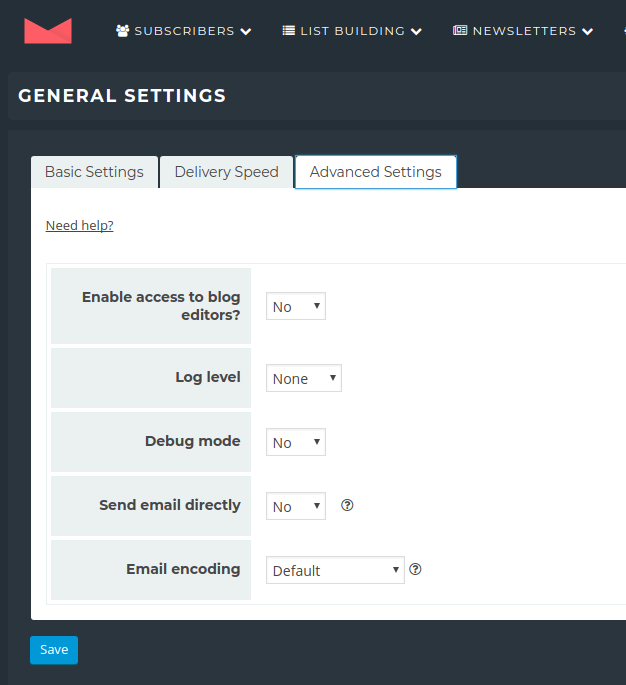
Various settings can be configured here, e.g., access permissions to the plugin for editors, log level (collection of technical information), and debug mode (if the plugin should not function correctly). More interesting is the item Send email directly. This option is important, and the On/Off state depends on how the emails are actually to be sent. There are several possibilities:
- Direct delivery via WordPress: WordPress not only generates the emails but sends them itself. This option will be problematic with many hosters, as WordPress is often configured so that only a few emails can be sent. The risk of abuse by a hacked WordPress installation is simply too great.
- Delivery via mail service provider and plugin integration: instead of entering SMTP credentials directly, the mail gateway integration is created via a dedicated plugin.
- SMTP delivery via a mail gateway: here, a mail gateway can be entered via the SMTP section to handle the delivery. This means that the emails are generated by the plugin and passed to the specified server.
For the first and second options, Send email directly must be set to On; otherwise, it should be set to No.
Similar to mail delivery, encoding is only relevant if WordPress itself delivers the emails. If the emails are sent via another service provider, the encoding can be determined through them. By the way, the German translation at this point is incorrect (it says Email Verschlüsselung instead of Codierung).
Status 2026: In current versions of the plugin, these options are named and arranged differently. By default, Newsletter sends via the WordPress mail function; an SMTP plugin, the built-in SMTP function, or one of the add-ons for delivery services is recommended.
SMTP Settings
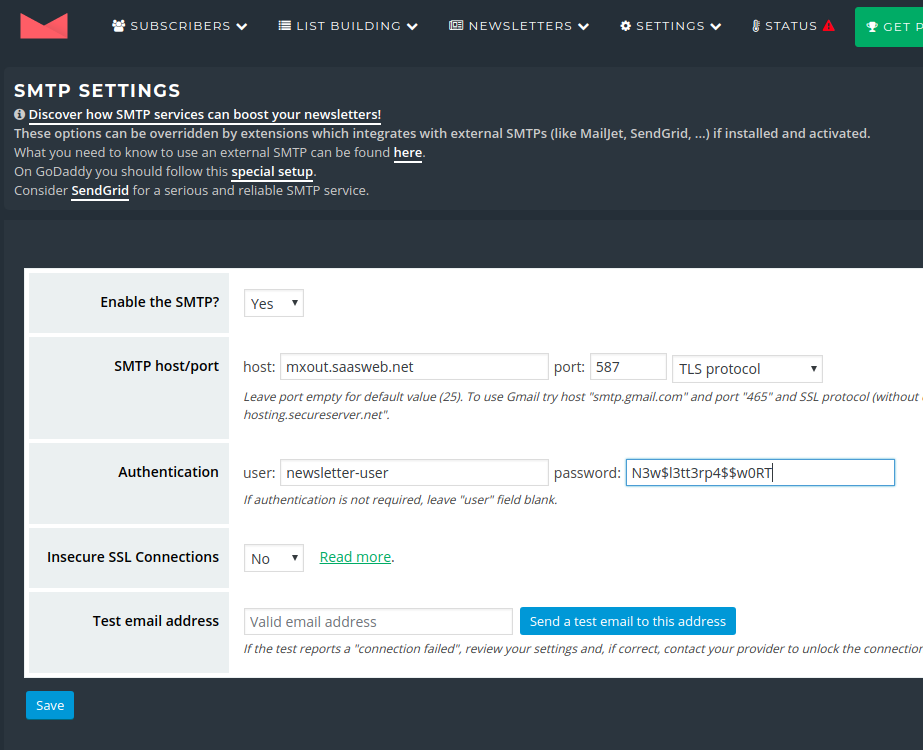
The parameters to be configured are essentially the same as those for configuring a standard mailbox. You can obtain the required data from your provider.
At this point, it should be mentioned that SaaS Web also offers a mail gateway service:
Creating a Newsletter
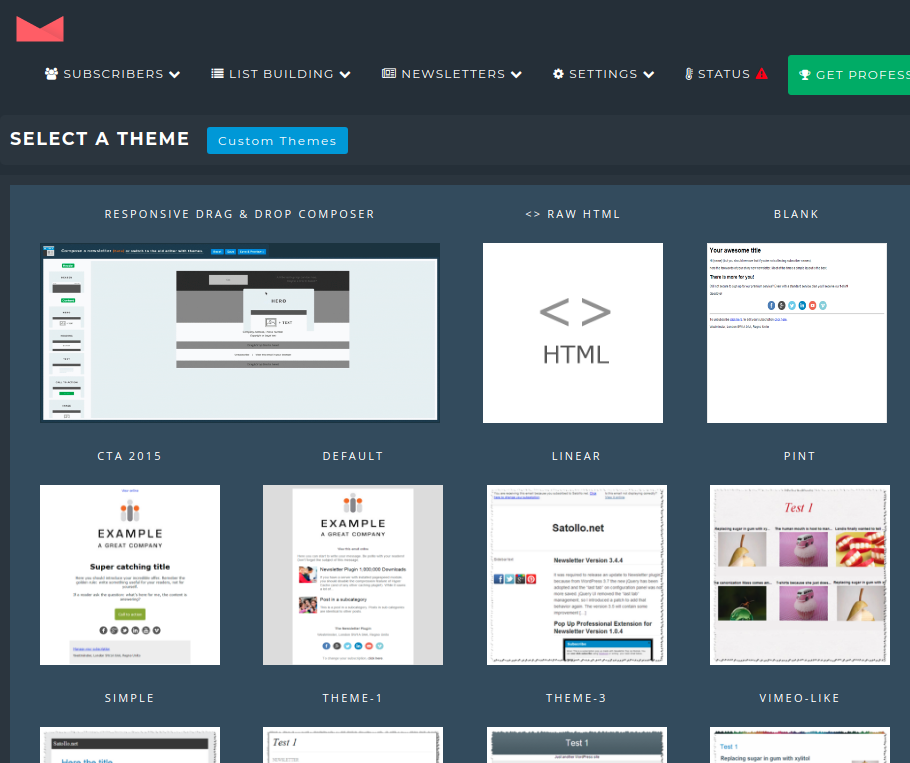
Creating a newsletter is quite simple. There are several templates to choose from. In many cases, the Responsive Drag & Drop Composer should be the first choice. We will take a step-by-step look at this option right now.
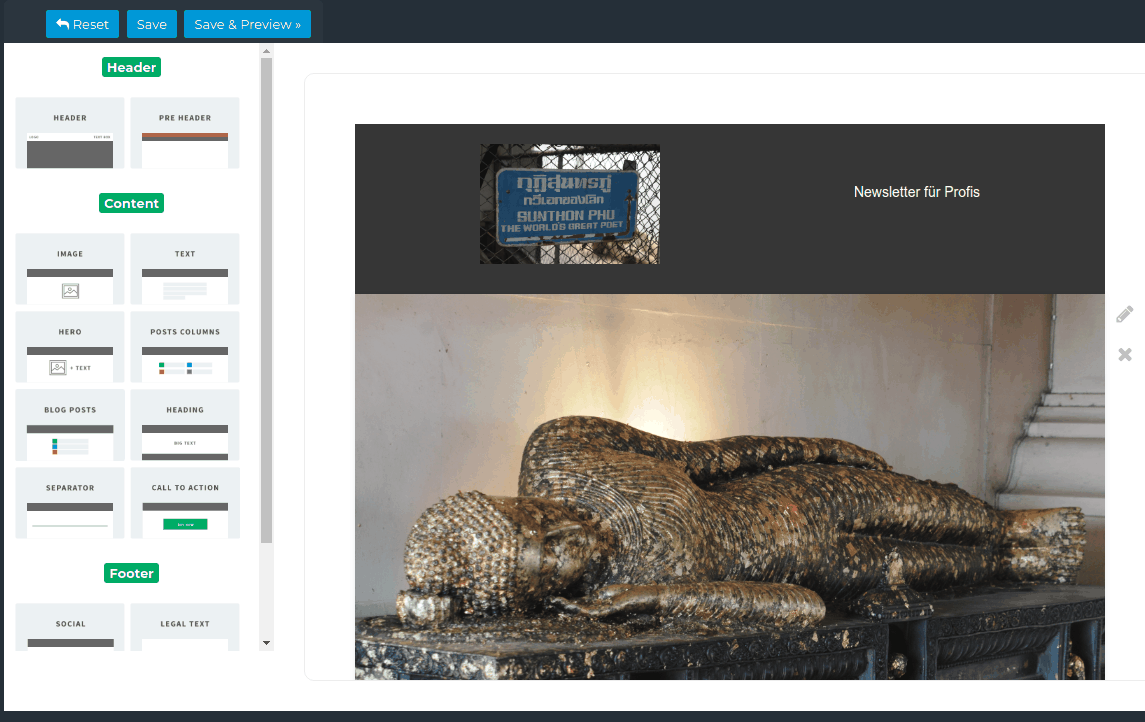
The Drag & Drop Editor
Here, content elements can be placed into the template via drag and drop and then filled with content.
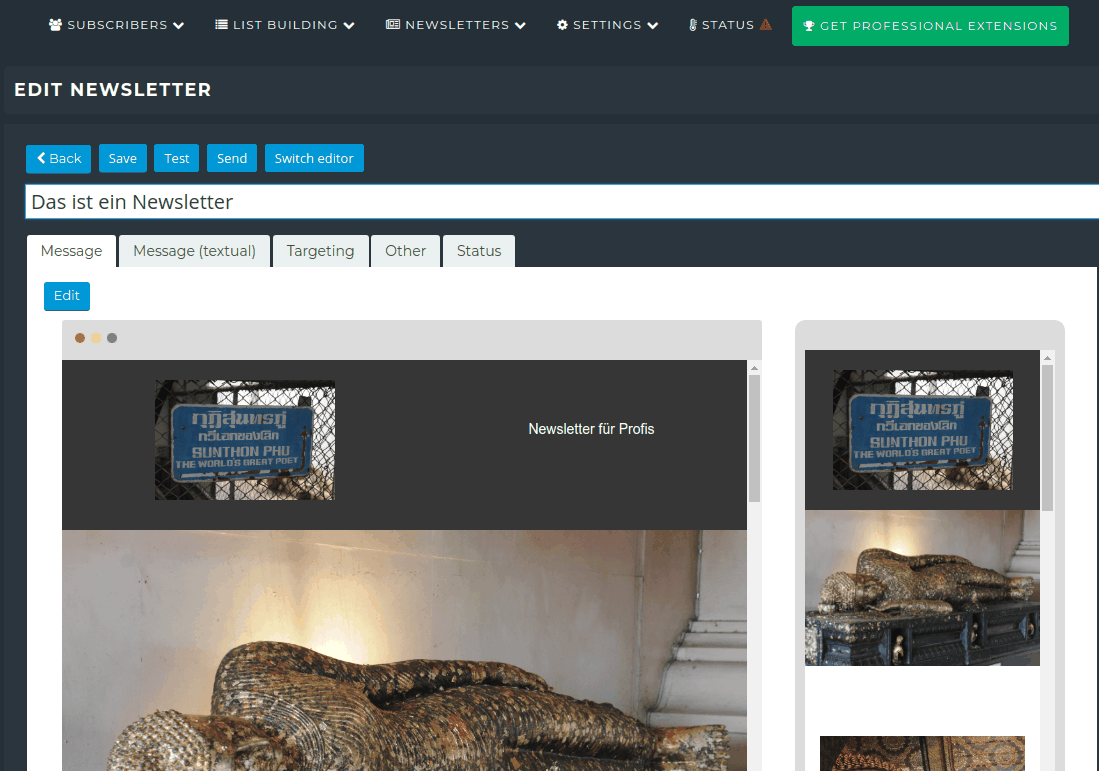
New Mailing: Enter Title
In this step, only a title is defined. This is the subject of the newsletter, which is what the recipient sees first. One should be careful here. Titles like “Super Sale! Everything for free” etc. are often perceived as spam.
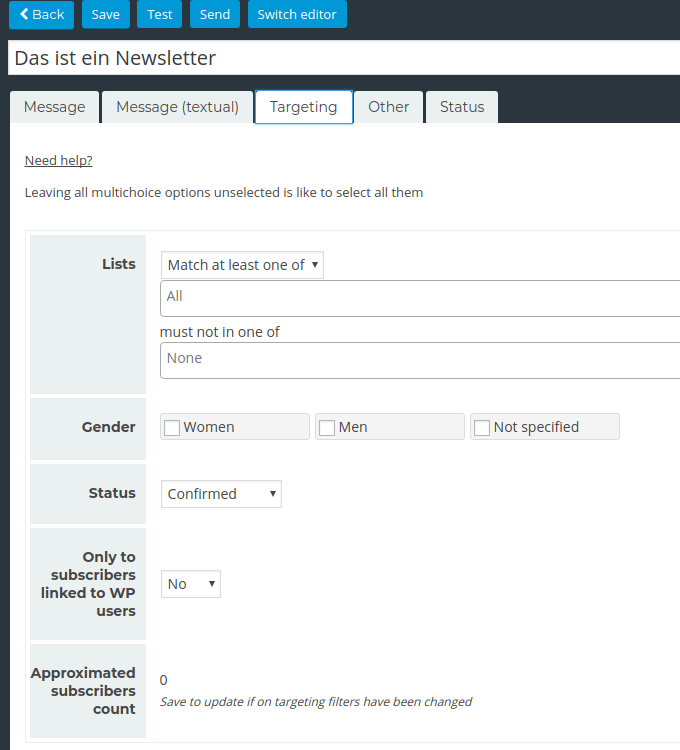
New Mailing: Configure Recipients
By default, all recipients are selected. However, you can select one or more lists (or other criteria) to define the recipient group more precisely.
New Mailing: Configure Delivery
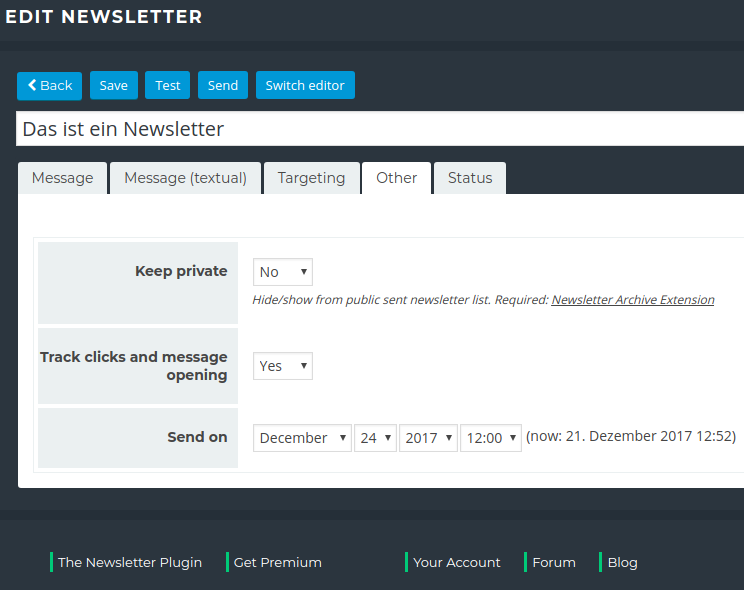
This is mainly about activating Tracking—the statistics can then be followed in real time—and defining the delivery start (date and time).
The option Keep Private refers to the use of the Public Archive extension (formerly Newsletter Archive Extension), which can be used to create a newsletter archive on the website. Newsletters that are intended to be private will not be listed there.
Testing the Newsletter

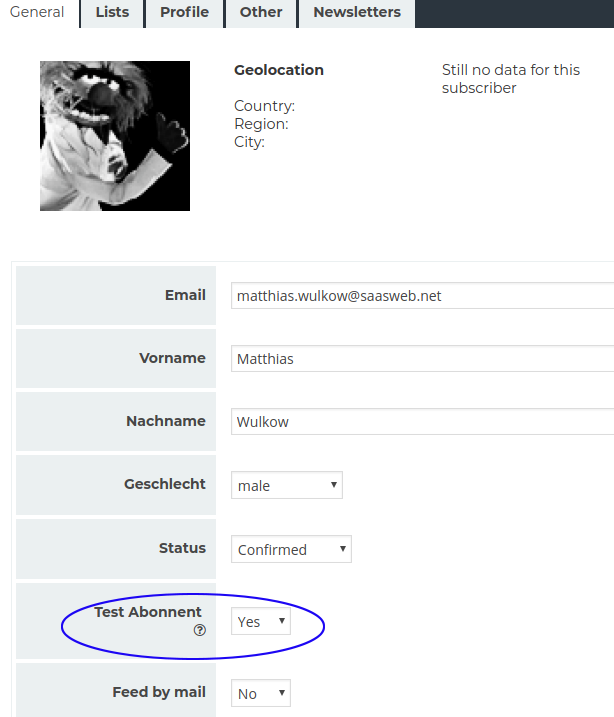
After everything is configured and the newsletter is ready for delivery, save the status as a precaution (you can and should do this in between as well). Next, a test delivery is recommended to check if the newsletter is exactly as it should be. The test works like this: at least one recipient in the recipient list must have the Test Subscriber property.
Testing Newsletters with Mail Tester
This service is initially unrelated to the plugin. However, it is always good to check the chances of landing in the recipient’s mailbox instead of the spam folder. Services like Mail Tester exist for this purpose. Mail Tester is free (as of 2026: 3 tests within 24 hours, others for a fee) and really easy to use—without registration or other advertising annoyances.
Simply enter a fake recipient into the list of recipients and link the provided address. Then have the result evaluated. Simply visit https://www.mail-tester.com/[mailbox-name].
Sending the Newsletter
When you are truly finished—the newsletter has been checked for content and technical accuracy—you can begin. Simply click on Send. Delivery will then start at the scheduled time.
Attention: the WP Cron problem! We almost forgot that topic 😉 See the WP Cron section.
The WP Cron Problem
How do scheduled actions normally work in WordPress?
WordPress, like most web applications, does not run permanently in the server’s memory. Only when a page is accessed does something happen, and one or more script files are executed.
This means: if no one visits the website, no script is executed, and no newsletter will be sent on Thursday at 3:30 PM.
Disabling wp-cron or setting up cron jobs differently
The solution to the problem is quite simple:
- Deactivate wp-cron.php: to do this, a line must be added to the central WordPress configuration file.
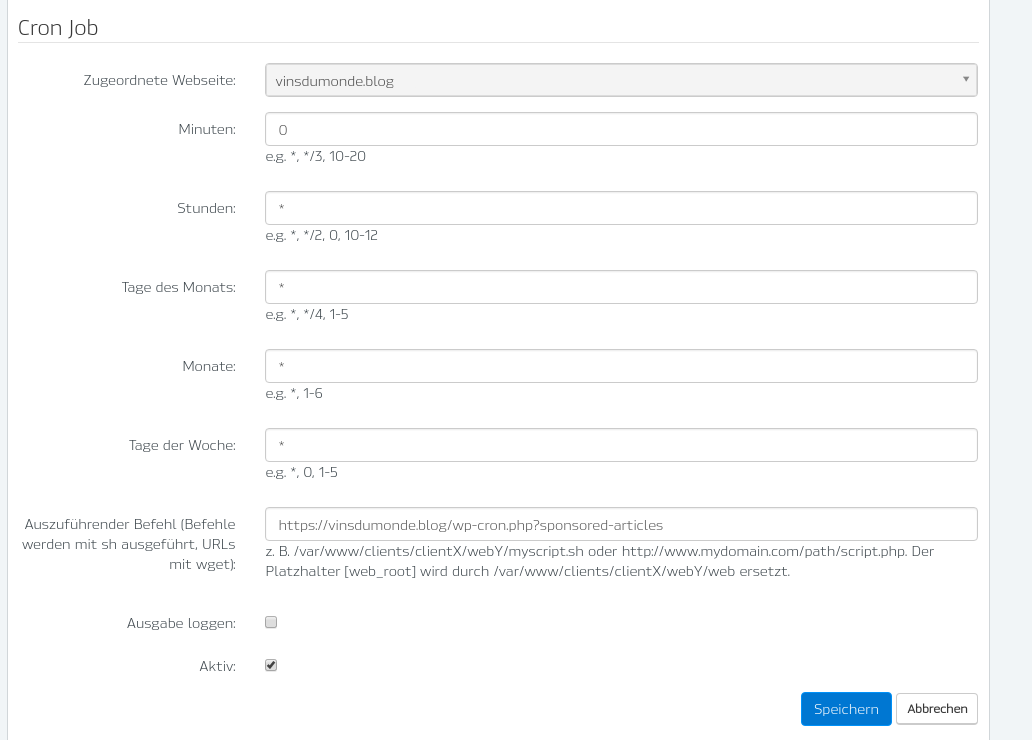
define('DISABLE_WP_CRON', true); - Set up a system cron job that calls the URL regularly, e.g., every 5 minutes:
https://www.deine-domain.de/wp-cron.php
How and where to set up cron jobs is not necessarily easy for beginners. It is best to ask a professional. Here is a screenshot from ISPconfig for the website www.vinsdumonde.blog.
Newsletter Premium
For a fee, the plugin can be upgraded to Premium (as of 2026 in the tiers Essential for 1 website, Professional for 3 websites, and Agency for unlimited websites; updates and support for one year each, current prices from the manufacturer).
The Premium version includes several interesting add-on plugins:
- WooCommerce Integration (from Professional): when enabled, the plugin integrates into the WooCommerce checkout process and offers buyers the option to subscribe to a newsletter at the same time.
- Advanced Statistics: gain more insight into your customers/readers.
- Mail Gateway Integrations: well-known providers are available, such as SendGrid, Mailjet, Brevo, or Amazon SES.
The complete list of additional functions and extensions can be found here:
https://www.thenewsletterplugin.com/premium
Multilingualism with WPML and Polylang
In 2017, the Newsletter plugin did not yet support WPML; subscription at checkout with language lists could only be solved via customizations in functions.php. As of 2026, the plugin officially supports WPML and Polylang (TranslatePress partially): forms and texts can be translated per language, and the subscriber’s language is saved. Details can be found in the documentation on multilingualism.
Conclusion
Sending newsletters is a bit more complex than one might initially think. Especially if you want to do it correctly.
Although many points were addressed, some were omitted or only treated superficially.
In any case, the Newsletter plugin is an interesting extension for WordPress, even in the free version. For integration with WooCommerce, the Premium version (from Professional) is recommended.
Do you need help with your WordPress site? We keep WordPress up to date and secure and help when things get stuck. More about WordPress Support